
Service
The service section is an administrative section in which users can see the structure of the server and all the services that make it work.
Scheduler
In the scheduler section, the periodical execution of tasks and their information are shown:
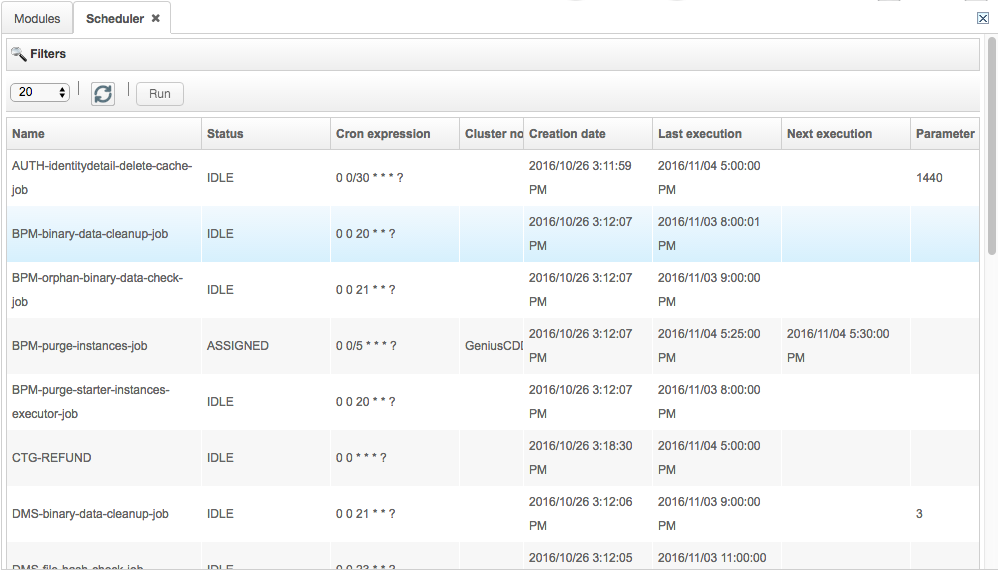
Name: the name of the task to be scheduled.
Status: the status of the task.
Cron expression: the regular expressions used to create executing schedules (e.g. execute at 10:15am on the 15th day of every month: 0 15 10 15 * ?).
Cluster node: the cluster node to which the task belongs.
Creation date: the date of creation of the task.
Last execution: last time the task was scheduled.
Next execution: next time the task is scheduled.
Parameters: necessary value to the execution of the task.
To run the execution before the scheduled time, press the Run button.
Cluster
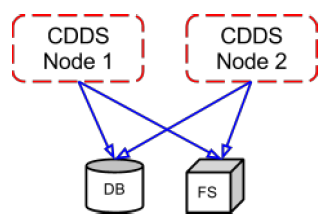
Cluster means a group of servers. So, clustering is when one or more Genius Server installations work together sharing the same database and file system.
The file system stores for a certain period of time all the files sent by users to the server. The database, instead, records for a certain period of time all the metadata related to the files sent by users to the server.
There are several advantages in using the clustering:
scalability: the more requests happen, the bigger the hardware must be, so resources are equally distributed among servers.
scalability in case of a huge number of MFPs: jobs are equally assigned among the different MFPs. To sort requests among servers based on their functionalities, a load balancer is used.
failed tolerance: when more servers are operating, there are more substitutes in case of failure.
reliability: in case of failure, servers keep on running a specific task.
specialization of the node: a specific task can be assigned to a server node. So, one node performs one task.
facilities: being installed in different zones, it is easier to update or monitor servers.
Load balancers can be subdivided into four components:
Internal Genius Server load balancer: an internal balancing system that migrates jobs from a node to another.
MFP load balancer: an automatic balancing system configured on the main server.
WEB load balancer: a HTTP or PROXY software or hardware balancer able to configure the sticky session.
Printing load balancer: it can be an hardware or a software balancer or a a network balancer.
In the Cluster section, nodes which are part of a cluster and their relative information are shown. The cluster overview is also available from the web console. For each cluster node, users can inspect primary (BPM and printing) and friendly zones.
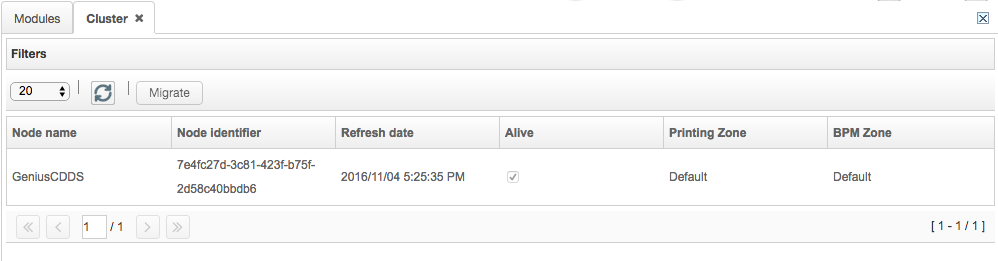
Node name: the name of the node.
Node identifier: the identification code of the node.
Refresh date: when the node was last refreshed.
Alive: if checked, it shows if the node is alive (working) or not. If the node is not alive and the the migration is not enabled on Configuration Tool, competences of the node can be manually migrated from a node to another (press the Migrate button).
Printing zone: a primary zone, which performs the printing task.
BPM zone: a primary zone, which performs the BPM task.
If the node is not Alive and the migration is enabled on Configuration tool, after 5-6 minutes of non response, competences of the node are automatically migrated from a node to another.
Select a node clicking on it. Each device, bulk detection definition and BPM definition are associated to a reference zone. Zone nodes provide devices monitoring, zone affiliation for device discovered by the bulk detection and specify in which zone binary files of BPM instances are saved. Users can check if nodes and friendly zones are Active (it means that nodes are switched on in that zone).
For each device, users can assign a zone for device monitoring.
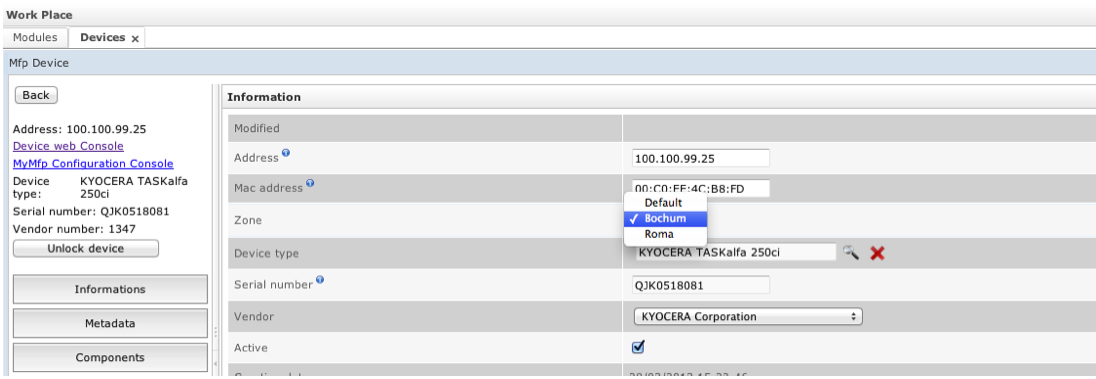
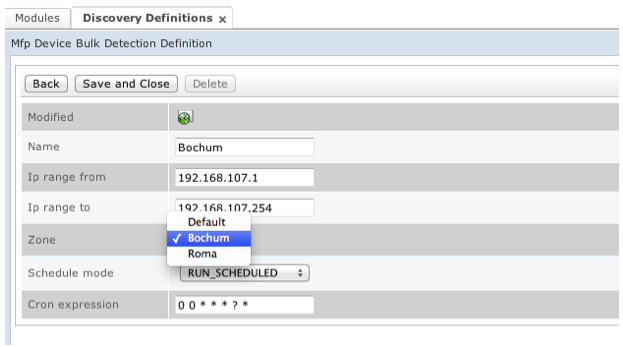
Bulk detection can be associated to a specific zone. All the discovered devices join that specific zone. Only nodes belonging to the zone can execute the network scan.
Cluster Async
The Cluster Async section shows nodes which perform a specif asynchronous task, e.g. Abbyy OCR.
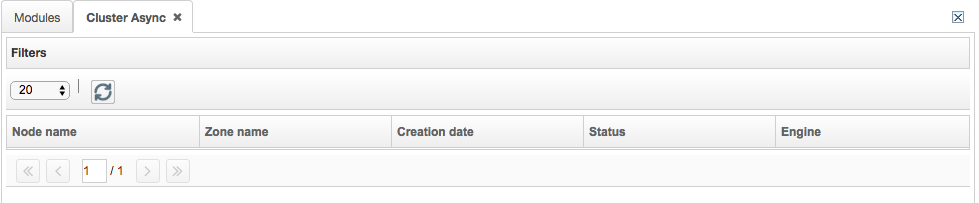
Node name: the name of the node.
Zone name: the name of the zone.
Creation date: the date of creation of the cluster.
Status: the status of the cluster.
Creation date: the date of the creation of the task.
Engine: the engine which performs a specific task.
Mail Transmission
Mail transmission section shows the status of all the emails sent the by the Genius Server providing an email control that is conducted by an external server.

The information displayed on the table is:
Creation date: the date of the email creation.
Origin: where the email has been originated.
Sender: the email sender.
Status: the status of the email delivering.
Number of attempts: how many attempts have been done.
Last attempt date: last time the mail has been sent.
Next attempt date: next time the mail is sent (if not already delivered).
Cluster node name: the name of the cluster node (if exists).
SMTP protocol: the Simple Mail Transfer Protocol.
Callback execution: if checked, as the mail is sent, a notification arrives to the sender.
S/MIME: Secure/Multipurpose Internet Mail Extensions: it is used to send secure and encrypted messages.
Event Protocol
The Event Protocol section shows Event Protocol warning messages.
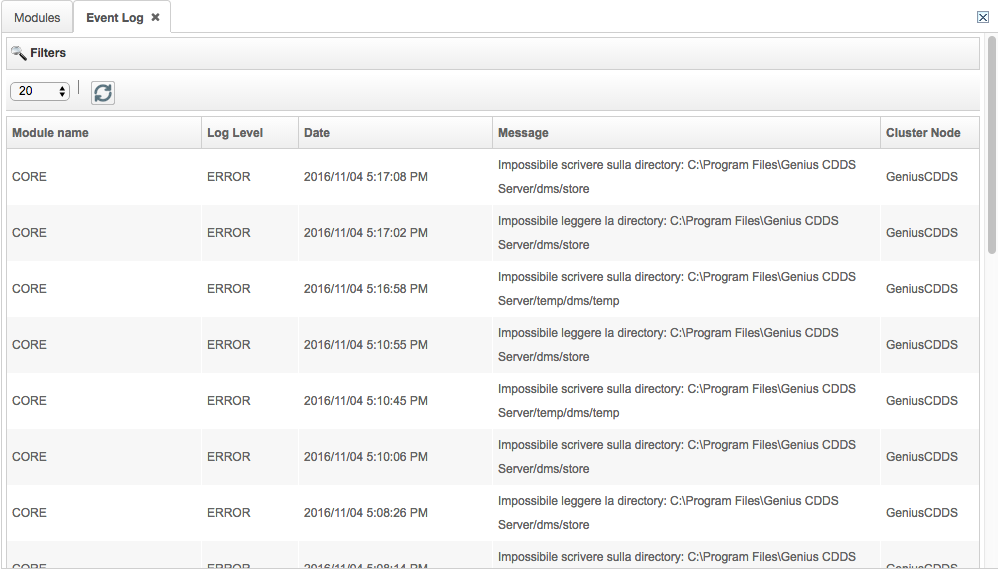
Module name: the name of the module.
Log level: the level of the log, mainly WARN.
Date: when the Event Protocol has occurred.
Message: the appeared message.
Cluster node: the name of the cluster node (if exists).
License Management
In the License Management section, users can manage the license.
Info
Info shows all the information about the license:
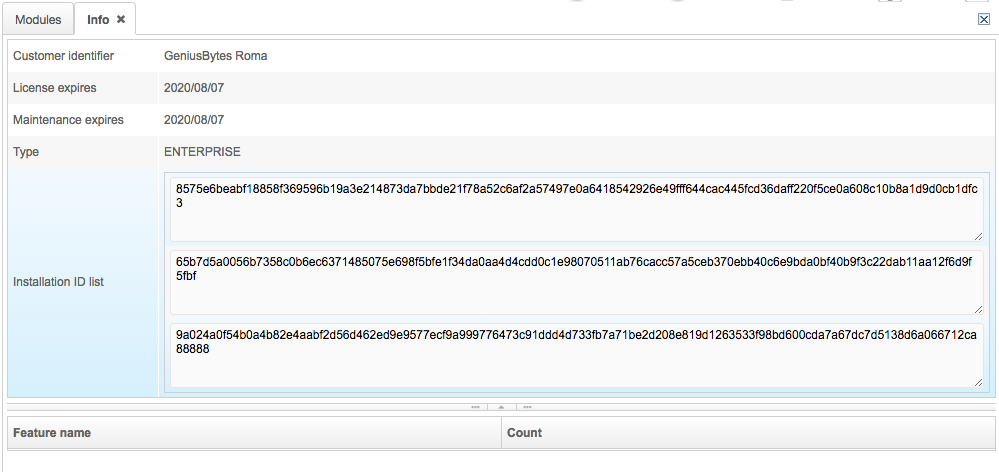
Customer identifier: the ID of the customer.
License expires: the license expiration date.
Maintenance expires: the maintenance expiration date.
Type: the license type. Possible types are DEMO, NORMAL, PROFESSIONAL and ENTERPRISE.
Installation id list: the ID of the server where the license is installed.
Feature
The feature section shows information on the user, the device and the PC.
Identity
The identity feature shows some information on the user identity.
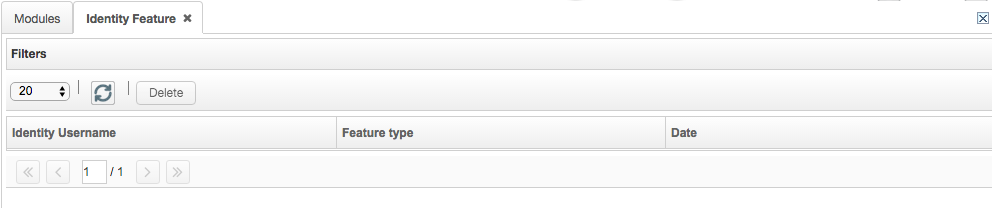
Identity username: the username ID.
Feature type: the type of the feature used by the user.
Date: the date of creation.
Device feature
The device feature section shows some information on the device identity.
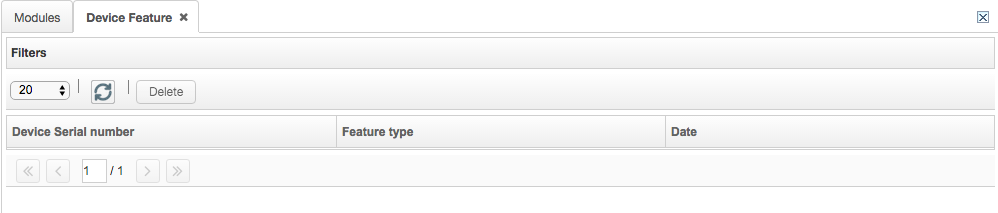
Device serial number: the serial number of the device.
Feature type: the type of the feature conducted on the device.
Date: the date of creation.
PC
The PC feature shows some information on the PC identity.
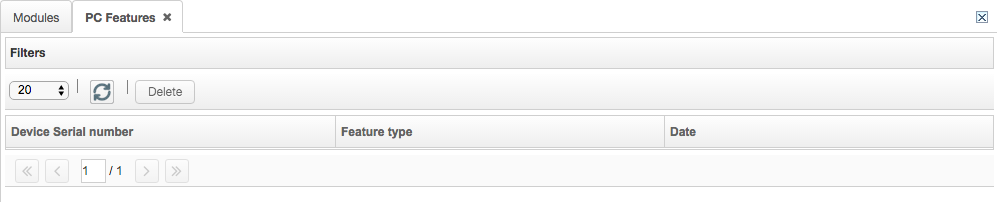
Device serial number: the serial number of the PC.
Feature type: the type of the feature conducted on the PC.
Date: the date of creation.
Cloud
Cloud computing provides a third location (the cloud) where to install a server. The server, which is directly linked to a database and a file system, cannot send back information (including monitoring information).
The Cloud feature allows the installation of the Genius Server on another platform on internet. It provides BPM and DMS functionalities and the pull printing without the accounting session.
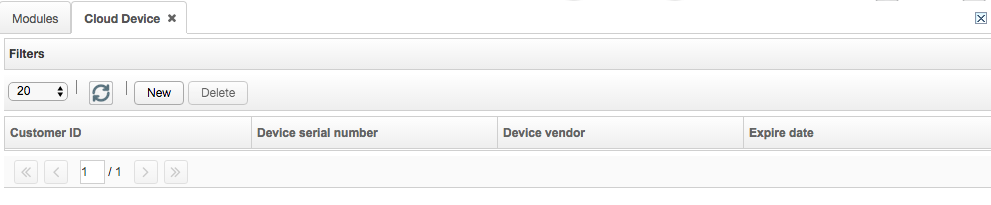
Customer id: the ID of the customer.
Device serial number: the serial number of the device.
Device vendor: the vendor of the device.
Expire date: the date of expiration.
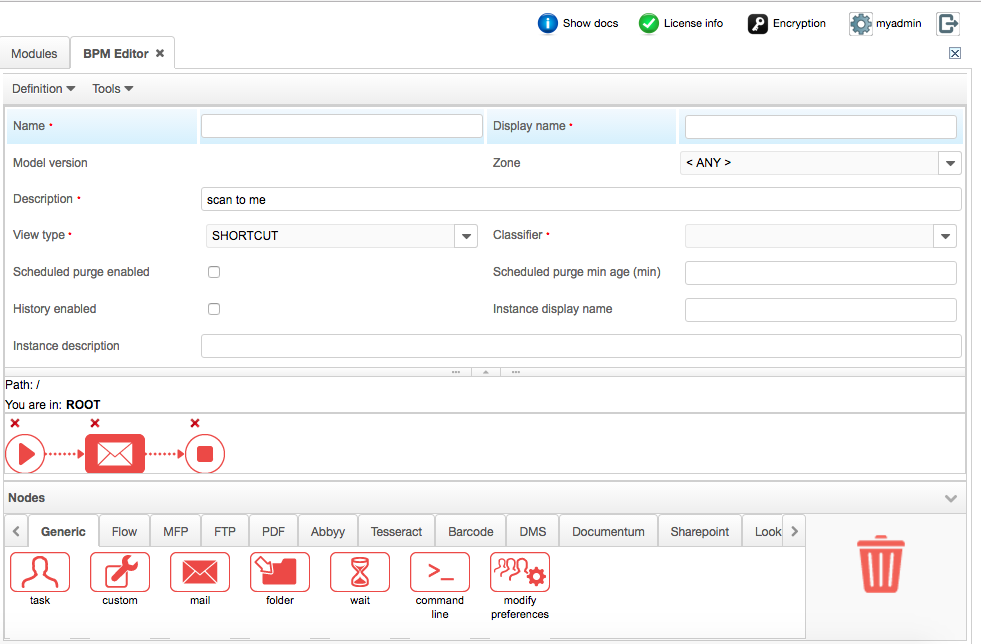
Association between zone and BPM definition
In the BPM Editor, when a new definition is created, the < ANY > value specified in the zone field means that the zone association is missing and the BPM instance starts in the primary zone of the server. If a zone is specified, the binary files are saved on the selected zone.
The visibility of a definition is limited to servers, which have the definition zone configured as a primary or friendly zone.
Zones
The zone clustering has been conceived to meet the need of having the Genius Server solution able to work properly in more than one location of the same customer. Every cluster works independently from the other(s), has its own file system and a shared database where all metadata are stored.
Zones can also be friend zones, it means that a user can visualize and print his pull printing jobs in a zone different from his own.
Recently, there has been an extension of zones, which allows the various offices to connect to a relay through a Raspberry without using neither the server nor database (for further details, refer to Genius Relay section).