
Troubleshooting
This section covers common errors when using the Genius Server and its components. Please check first if your problem is listed here, before opening a support ticket. If you found your problem and tried the solutions listed here and nothing helped, please open a support ticket. Make sure to include at least: Genius Server version, Genius Server version, the zipped log folder of the Genius Server, client logs if a client is involved, your my-license.lic file and a description of the error. The more details you send, the easier the support team can help.
Server not Available
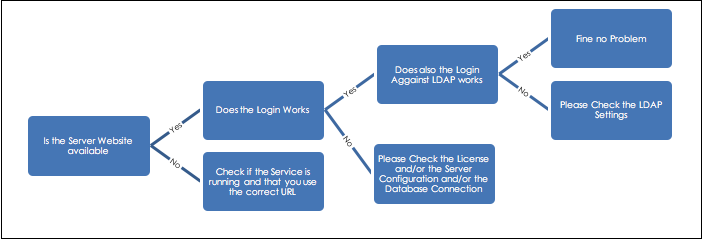
Genius Server not being available could have multiple causes:
Wrong URL. The correct URL to access the Genius Server website is: http://localhost:8080/.
A service has not started correctly. Go to the configuration tool and start the service (for more details, refer to Configuration Tool Overview).
A missing license. Genius Server will only work with a productive or demo license. Send the installation ID to your contact person (for more details, refer to Genius Server License).
A missing configuration. Check the Genius Server configuration (for more details, refer to Configuration Tool Overview and Configuration Overview).
A database error (for more details, refer to the next section Database not Available).
License Invalid
An invalid license can have many reasons:
The installation ID has changed due to a relocation of the VM/the hardware where the Genius Server is installed. Check your installation ID in the configuration tool and in your productive license (open with a text editor program, e.g., Notepad++) If the IDs differ, send the new installation ID to your contact person. This needs to be sent to the GB order team so a new license can be generated. Make sure to include the Genius Server version.
The license has expired. Check with your contact person, if a renewal is needed.
The server version installed differs from the one the license requires. Check with your contact person if everything is set correctly. They will contact the GB order team.
One last note:
If your operating system is set to a timezone not equal to "UTC +1" with enalbed daylight saving time and you experience startup issues or license errors, please contact our order team to receive a fixed license.
Database not Available
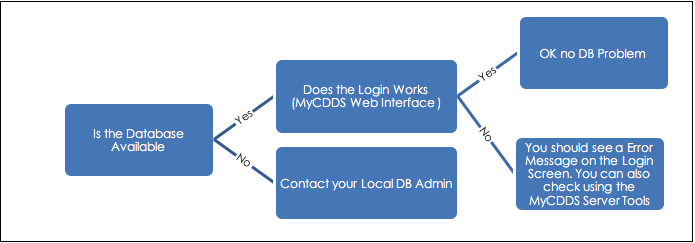
If the errormessage Login failed. Please try again. Reason: Could not open Hibernate Session for transaction; nested exception is org.hibernate.exception.GenericJDBCException: Cannot open connection or similar appears when trying to login, a database error has occurred.
When a database error occurs, Genius Server, printing, accounting and Genius MFP Clients will not work.
To confirm that a database error occurs, open the Genius Server Configuration Tool. Go to Base -> Database.
Perform a database connection test. If an error occurs here, contact the local DB admin (for further details on how to perform a connection test, refer to the section Database).
LDAP Authentication Does Not Work
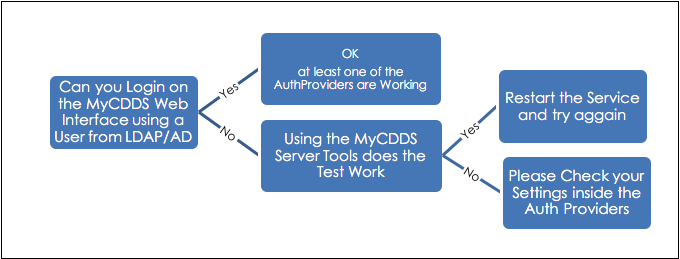
If the user can access Genius Server with a local user (e.g., myadmin) but not with a LDAP/ AD user, test the connection in the authentication providers section of the /conf website.
Warning
Do not perform any change if you do not know the LDAP connection details.
Wrong Firewall Configuration
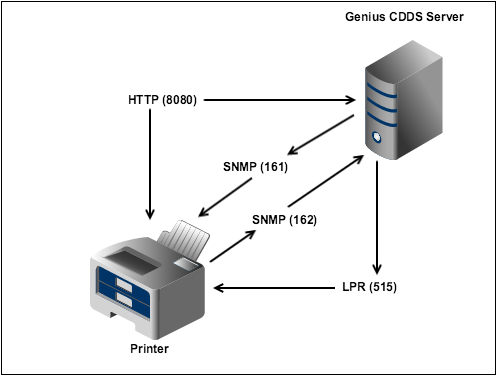
Modify the server’s firewall configuration to allow TCP connections on ports 8080, 161, 162, and 515.
Direct Print Does Not Work
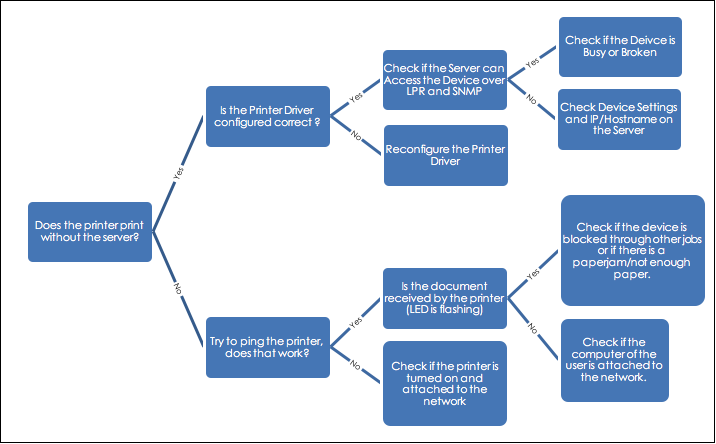
If direct printing does not work, but jobs are delivered to Genius Server, check the printer settings. By default, the Genius Server is listening on LPR port 515.
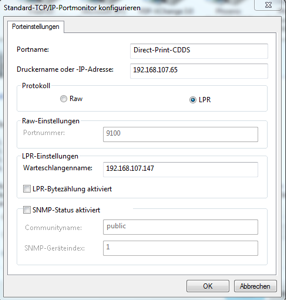
Configure the printer driver port as follows:
Standard TCP/IP ports
Genius Server IP-Address
Protocol: LPR
Queue name: Hostname/IP-Address of the MFP/Printer
Device not Detected
If a direct print job remains in the Incoming queue with the error message “Device not detected”, check if the device is available in the Device List. If not, check if it is Online and if the SNMP Community fits the environment settings.
If the device is Online and the SNMP Community is correct, select the print job and push the button Retry (for more information refer to Device Management or Device (Conf) (specifially the SNMP section inside the Device (Conf) section)).
Direct Printing Queue in “Waiting”
If a direct print job remains in the Incoming queue with the status “Waiting”, check the device status on the Device Website or, if enabled, in the Device Monitoring (for further details refer to Device Management).
If the device is reachable, try to send the print job again. For this, select the print job and click Retry.
If the issue persists, select the print job and press Suspend. Once the status is changed to “Suspend”, press the button Resume. The complete queue restarts and Genius Server starts again to process print jobs.
BPM Process Does Not Work
Warning
BPM configuration requires a skilled person, do not perform any change if you do not know details of BPM configuration or if you have not received training.
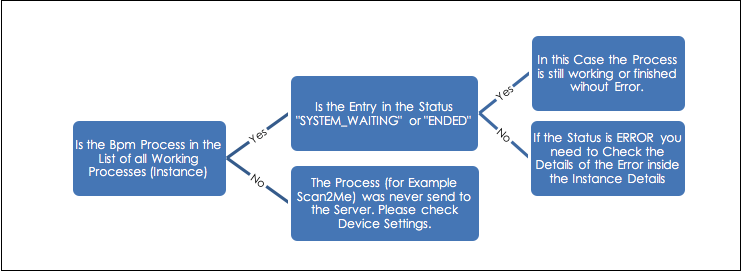
To check if a BPM process is working without errors, go to BPM instances. Refer the chapter BPM for details.
If the status of a BPM process is “Error”, double click on it and select Instance History to obtain further details.
E-Mail Transmission Error
If in the Mail Transmission section the e-mail status is “failed”, a wrong configuration has been set. To check the E-mail configuration, open the Genius Server Configuration Tool. There go to Base -> Email.
To test an E-mail connection, press the Send a Test Mail button.
If an error message occurs, check if credentials are correct or if the VM is allowed to connect to the mail server.
If the problem persists, contact the administrator.
Performance Issues
If you experience performance issues in a medium or large environment, it might be the case that the JVM memory heap is full.
To configure the service to allocate more memory space, open All Programs, select Genius Server and then bin.
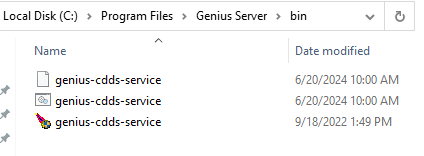
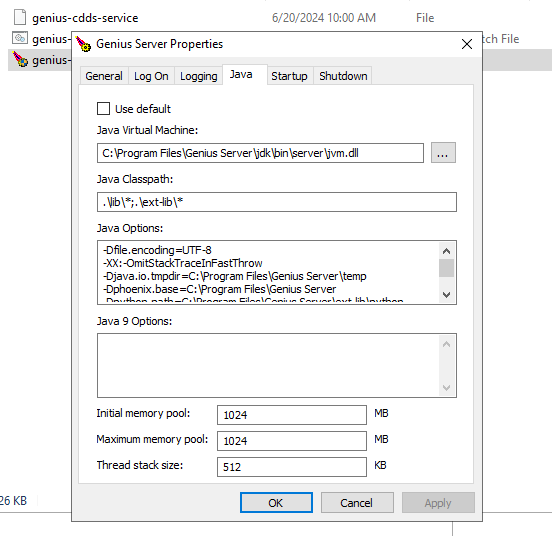
Double click on genius-cdds-service. The Genius Server properties window opens. Switch to Java tab and set Initial memory pool and Maximum memory pool to new, higher values.
Warning
It is not recommended to set a value bigger than 2GB. We recommend to set the same value for Initial memory pool and Maximum memory pool.
Custom Client Skin Does Not Work
If your custom client skin does not show up on the MFPs, please check that the fields Embedded Type, Vendor, Subtype and Active are filled out correctly in the Tenant -> Client Skin section.
Refer to the Subtype Table for the correct subtype to add.
How to Fix TLS Connection Issues
First check if all CA certificates are available in the configured trustStore i.e. Windows-ROOT.
If the Genius Server has all CA certificates available, but the TLS connection still fails with a chain of trust related ERROR messages like "Unable to find valid certification path to requested target" or similar, please do the following:
In this case the TLS Webserver does not seem to offer the intermediate certificates, but only the server certificate itself. The client, in this case the Genius Server, needs to know the CA and all intermediate certificates involved.
To test the TLS Webserver, there are multiple ways:
Open the KeyStore Explorer, then examine SSL:
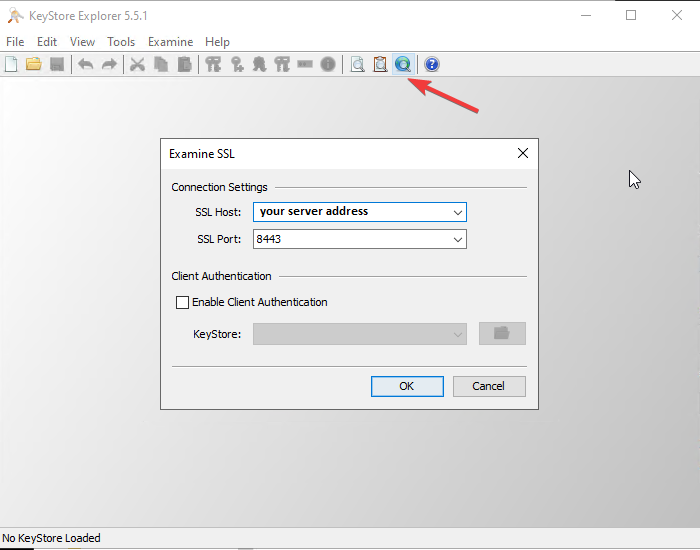
The result should look somewhat like this:
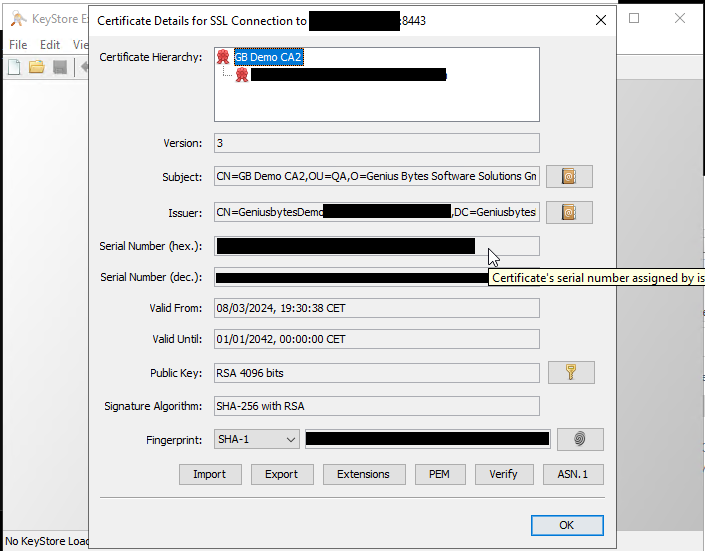
The result for this test shows the server certificate and an intermediate certificate (signing the server certificate). The ca (root) certificate is not included, it has to be provided by the TLS clients trustStore. In case of Genius Server in the role of a TLS client, this is the configured trustStore in the certificates section (Windows-ROOT, JKS, PKCS12).
Another way to check the TLS certificate structure a webserver offers is to use OpenSSL:
Open the command line tool and use OpenSSL's client command with the "ShowCerts" option
openssl.exe s_client -showcerts your-server-address:8443.Copy the required intermediate certificate to the Windows Root certificate store, or configure an internal trustStore with a CA (root) and intermediate certificate inside.
If the certificate is not the issue, the URL might be. The URL for a TLS connection needs to be configured to one of Names the certificate is valid for. Typically these names are listed in the certificate extension "Subject Alternative Names". If a certificate has the following SANs:
ldap.gbc-se.eu
dc.gbc-se.eu
a valid url in this case is: ldaps://gbc-se.eu:636 but not ldaps://192.168.102.133:636 because the ip is not in the SAN list. The extensions can be checked with keyStoreExplorer aswell.