
Reporting
Reports are documents that show data (analysis, statistics, etc), which are contained in the application.
The Genius Server allows the generation of reports in different formats (.pdf, .xls, .cvs, .tsb) and their information is about device counters, authentication identities and MFP devices.
Definition
In the Definition section, the administrator can load built-in or custom reports. To load a report press the Load button.

The load report template window is shown:
Code: a short identifier.
Category: the data category the report is based on, i.e. ACC for Accounting.
Name: the report name.
Description: the report description.
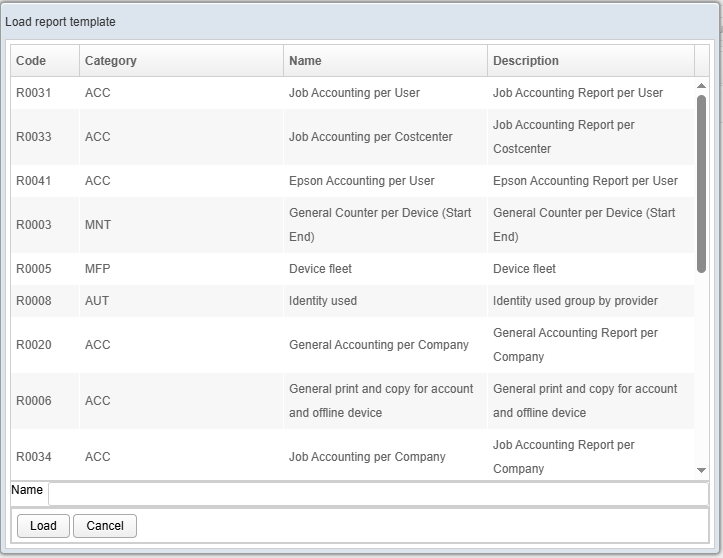
Select a report for example: R0002, General Accounting per Costcenter and Confirm (Load).
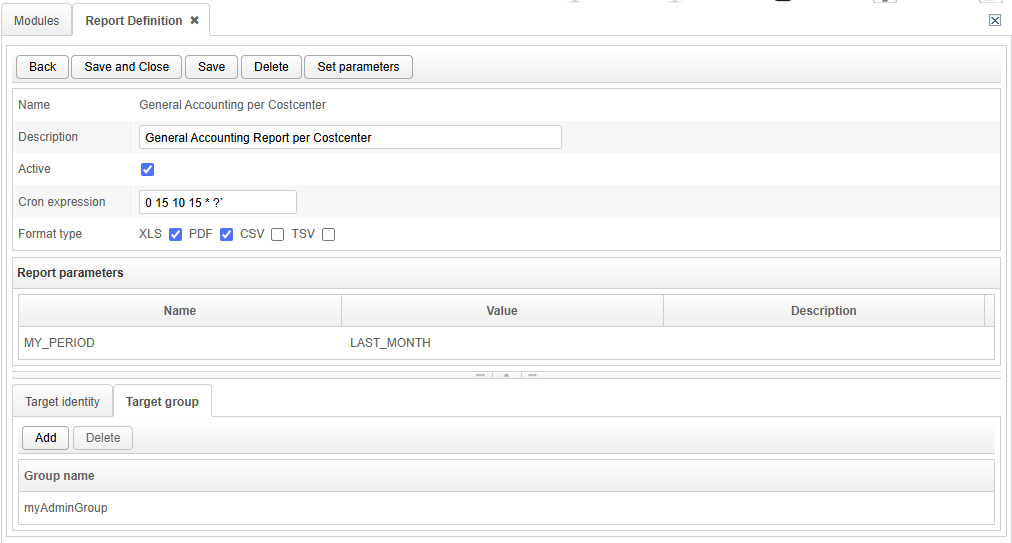
The follow up window is required to configure the report execution:
Name: name of the definition.
Description: a short report description.
Active: it shows whether the report creation is enabled or not.
Cron expression: a scheduling time expressions (e.g. fire at 10:15 am on the 15th day of every month: 0 15 10 15 * ?).
Format type: The file formats, the report should create.
Report parameters: The parameters are used to set custom report parameters, i.e. MY_PERIOD. Use the Set parameters button to configure it. MY_PERIOD controls the time frame for the data collection.
Target identity: The report can be made available for a list of users. The user can subscribe to the report using GWEB.
Target group: The report can be made available for a list of groups. The members of the group can subscribe to the report using GWEB.
Confirm report configuration (Saved and Close).
Information shown on the reports are:
Name: name of the definition.
Active: it shows whether the report creation is enabled or not.
Creation date: date of creation of the report.
Cron expression: a scheduling time expressions (e.g. fire at 10:15 am on the 15th day of every month: 0 15 10 15 * ?).
Next execution: the next planned execution.
To create new custom report definitions, please refer to the chapter Creating a New Report Definition, since the reports are generated per Tenant and can be uploaded and edited there.
Accounting Pivot Table
For further information on the accounting pivot table, refer to Pivot Table in the accounting section.