
Genius Server Web interface
The Genius Server administration console is available entering the following address on a browser page:
<IP-Server>:8080, where <IP-Server> is the Genius Server's IP address.
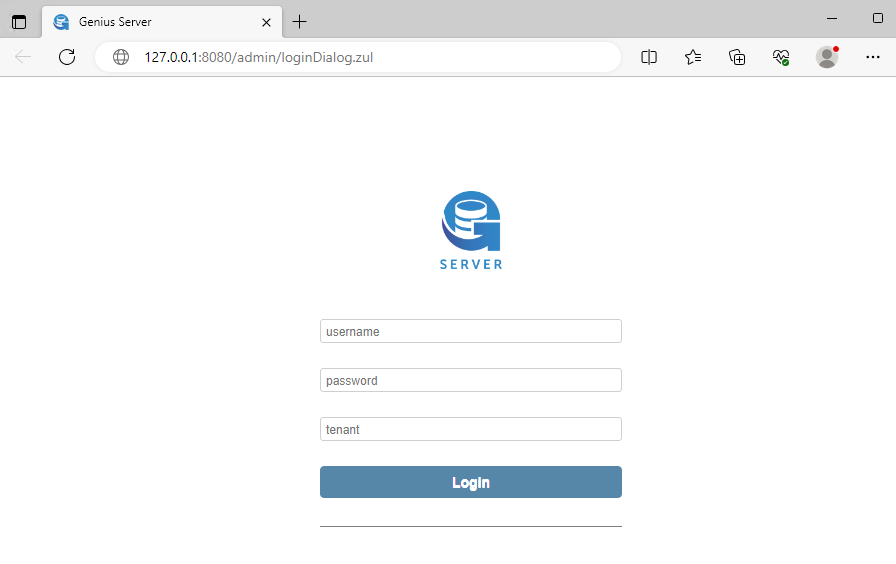
Default administrator credentials are:
Username: myadmin
Password: gb
tenant: DEFAULT
After you have logged in as administrator, the home page opens:
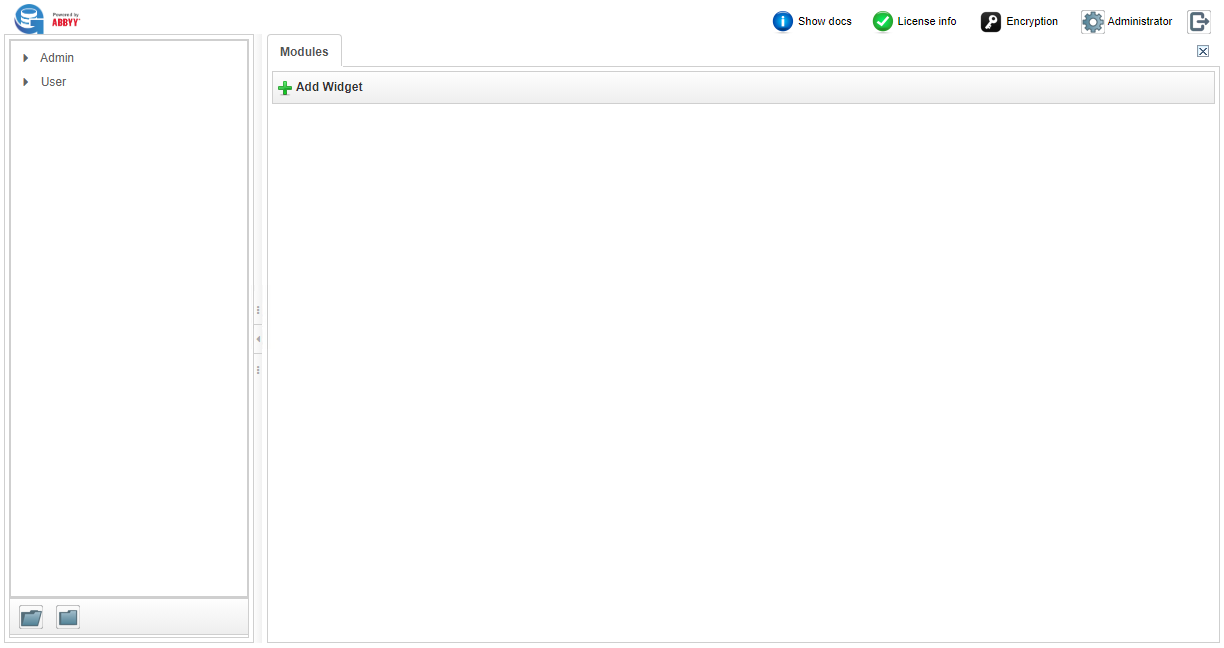
The adminstrator can change the administrator's password after the log in. For further details, refer to the Change Credentials section.
Change Credentials
To change the password, take the following steps:
Press the gear icon near the account name.
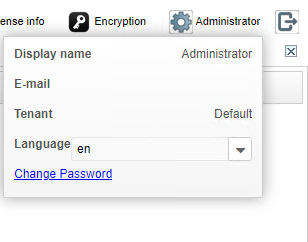
Press the Change Password button.
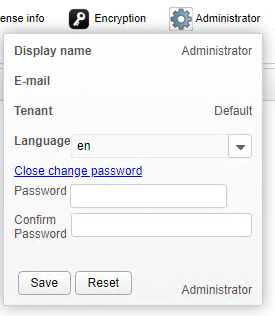
Enter the password twice: once in the New Password and once in the Confirm Password text box.
A colored line suggests the strength of the chosen password against guessing or brute-force attacks:
Red: very weak (short line) or Weak (longer line)
Yellow: medium
Green: strong (short line) or strongest (longer line)
To confirm, press the Save button.
License expiration status
The Web Administrator Console provides a check system to control both the Genius Server License and the expiration time for the technical support.
This feature is available only for administrators (i.e. all members of the myAdminGroup).
On the top bar, an alert icon shows the License status:
INFO: Green icon with a check mark shows a valid license for at least 60 days.

WARNING: A yellow icon with an exclamation mark shows that the license is about to expire, its validity range is between 30 and 60 days.

ALERT: Red icon with an X Mark shows that the license is about to expire in 30 days or less.

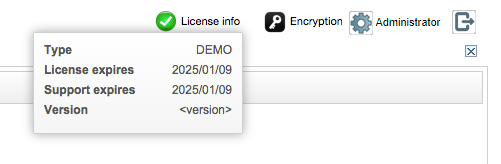
For details about the license, press the License info button. The information shown are:
Type: the type of license (e.g. Demo, Professional, Enterprise).
License expires: the expiration date of the license.
Support expires: the expiration date of the technical support for this license.
Version: the Genius Server version installed.
To visualize License info, or the details about the license, press the relative button. The information shown is:
Type: the type of license.
License expires: license expiration date.
Support expires: support expiration date.
Version: Genius Server version installed.
Encryption Status for Genius Server Modules (ON/OFF)
The Web Administrator Console provides a check system to control the Encryption status of all Genius Server modules.
Encryption is a procedure to convert information into ciphertext, which requires a key to transform data into their original form. The Genius Server uses the AES 128 bit algorithm to encode data before storing them in the file system.
Note
This feature is available only for administrators (all members of the myAdminGroup).
Press the Encryption button, on the top bar, to visualize the information on the encryption status of the different modules:
if the encryption is enabled, the value shown is true.
if the encryption is disabled, the value shown is false.
Note
The Encryption statues can be either true (ON) or false (OFF).
Note
Users can encrypt data from BPM, DMS, Printing and Mail engines. These features can be enabled/disabled in the Configuration Tool.
Widget
To collect information about accounting and printing, the administrator can use widgets. To create a widget, press Add Widget.
In the first field it is possible to choose the information to see in the graphic.
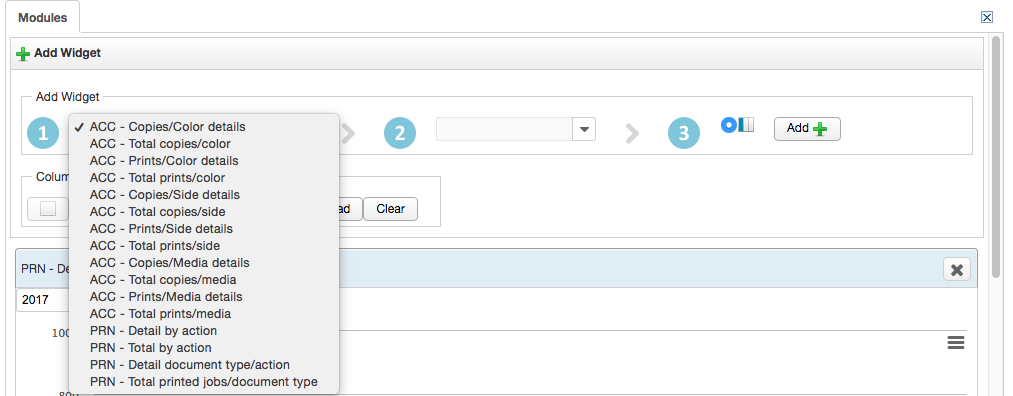
ACC: all parameters are related to the accounting activities.
PRN: all parameters are related to the printing activities.
Note
Choosing the parameters with "Total" in the name, a pie chart appears, otherwise a bar chart is displayed.
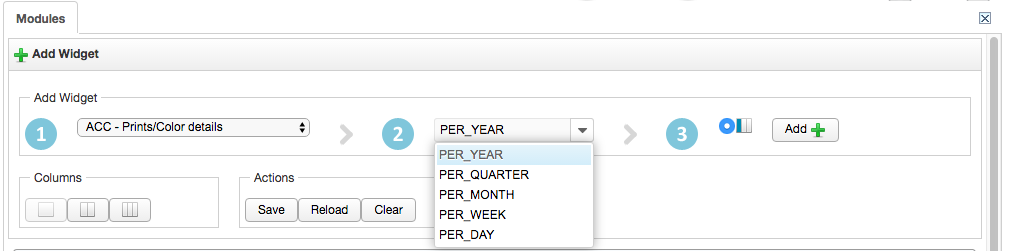
In the second field it is possible to choose the period to monitor.
In the third field it is possible to choose in which part of the widget screen the chart will to appear. The number of columns can be selected in the Column section.
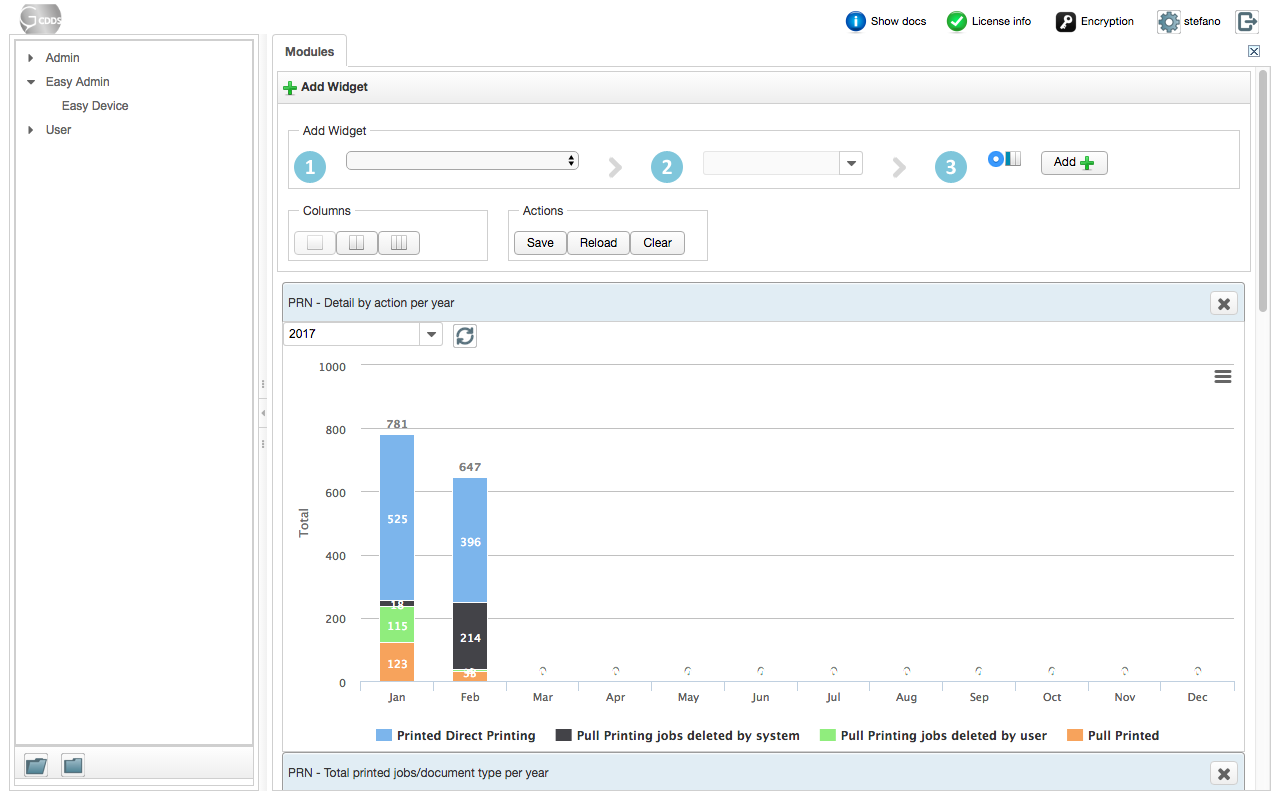
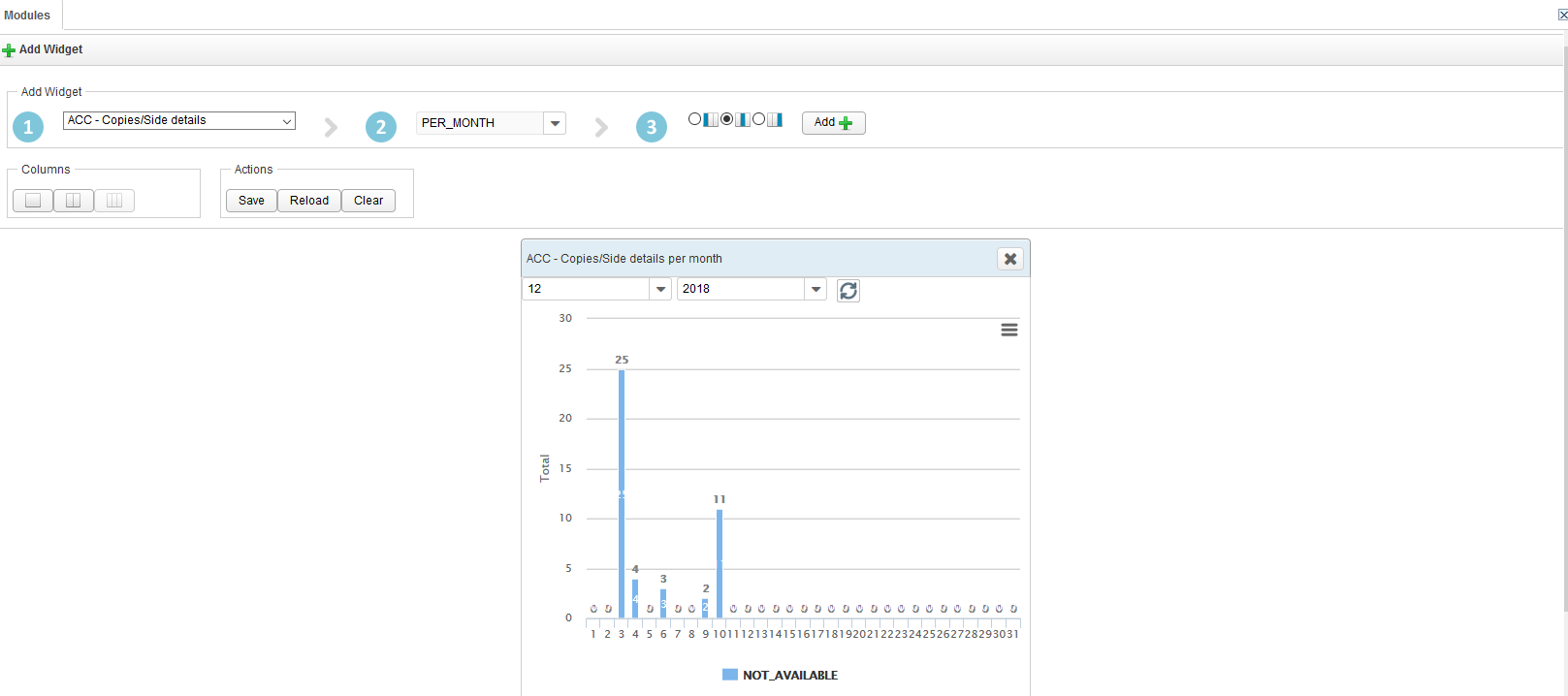
Pressing the button Add, the chart is created. You can move the charts by dragging the title field to another place on the screen.
In the section Action it is possible to Save or Reload or Clear the chart.
Note
Another way to collect information is the Pivot Table, for more details refer to Pivot Table.