Genius Server License
Once the system has been configured, the Genius Server requires a license to run. Usually this will be the productive license, but it also could be a demo license to bridge the time until the productive license can be created. Note that the demo license does not require the below mentioned Unique ID or Unique ID (UUID) (also known as Installation ID), but it is only valid for a short period of time.
Go to the Configuration Tool Overview and click on License Management.
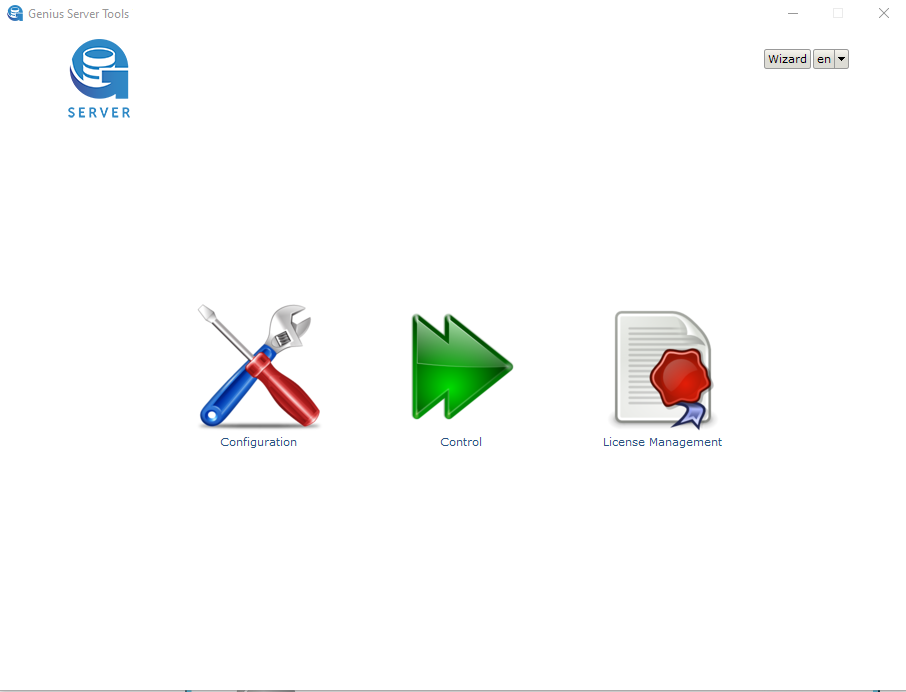
Copy the shown Unique ID or Unique ID (UUID) and send it to your contact person or directly to order@geniusbytes.com. Send it in a .txt file to avoid complications.
Hint
We recommend using the Unique ID (UUID) in cloud environments or in environments where the Unique ID changes often. Please note that the Unique ID (UUID) might change when moving, cloning or copying the VM.
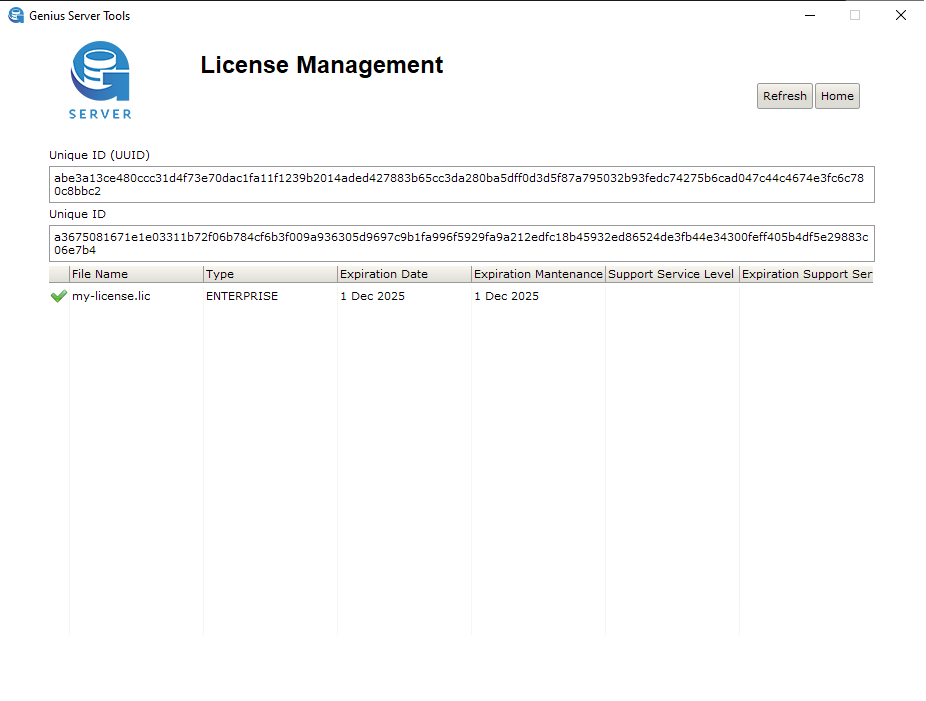
Your sales contact person or the order team will send you a file called my-license.lic. This file must be copied into the installation directory of the Genius Server (the default directory is "C:\Program Files\Genius CDDS Server").
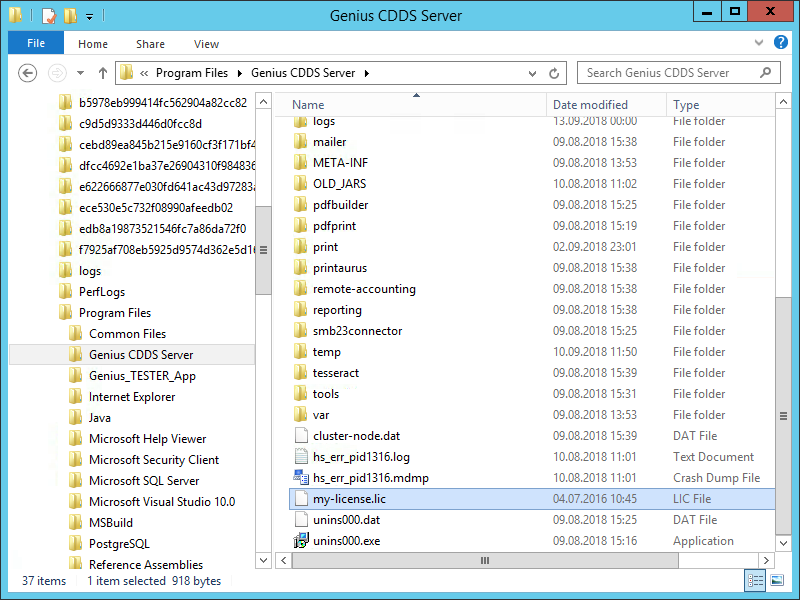
Go to above mentioned directory and back up your old .lic file if you had one (e.g., rename it to my-license.lic_bak.)
Insert your new my-license.lic file. Sometimes the .lic file is named a bit differently (e.g., if multiple licenses are sent out at the same time). Make sure that the file is renamed to my-license.lic or else Genius Server will not recognize it. You can still rename this file after putting it inside the folder.
Note
Long term users of our products might miss a step, namely restarting the service. Since Genius Server version 3.8.0 a service restart is not necessary anymore and the .lic files can be changed while Genius Server is running.
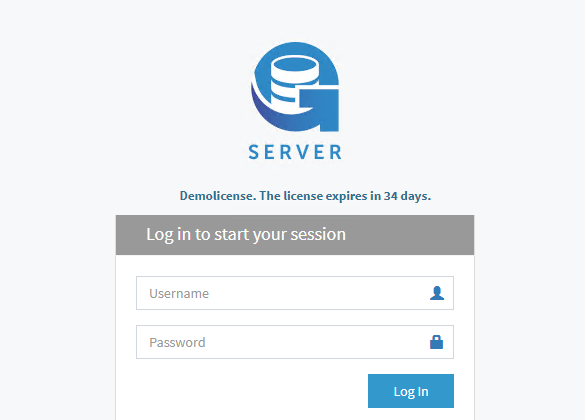
The Genius Server will show on its admin or conf view, what kind of license is installed. Here an example for a running demo license on the admin view:
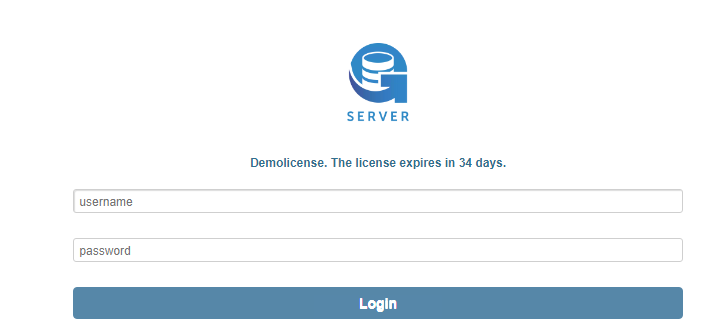
And here an example of a demo license running on the /conf view: