
[Advanced] Printing

The Genius Server printing module manages print jobs, which come from the direct- and pull-printing queues that are sent via LPR, IPP and IPPS. In this section, the admin can also configure the anonymization of print jobs.
Print Engine Architecture
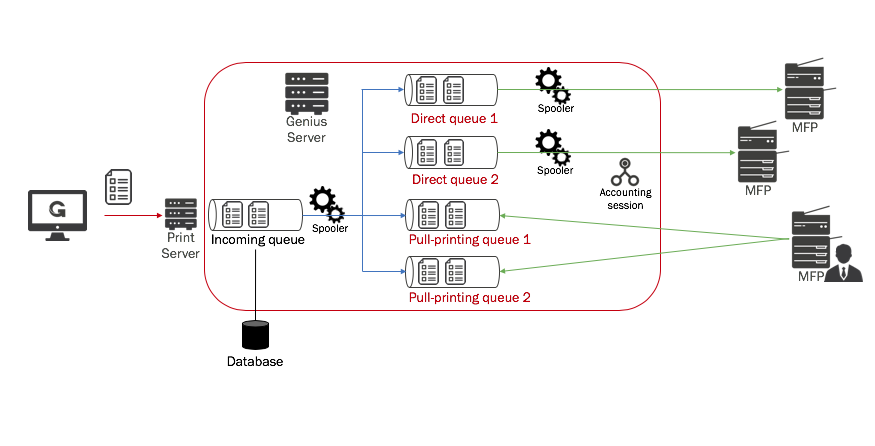
The print engine of the Genius Server is composed of:
Print server: receives print jobs through different protocols (LPR, IPP, IPPS) and sends them to the incoming code.
Incoming queue: receives print jobs from the Print Server, extrapolates all documents metadata and saves that info inside the database. Then the incoming queue applies the print rules to the print jobs.
Watchdog: takes print jobs from the incoming queue and dispatches them to the respective queue.
Direct printing queue: the name of the queue corresponding with the device IP Address. Print jobs sent to this queue are immediately printed.
Pull-printing queue: print jobs are stored in the pull printing queue until the user performs the authentication and prints them.
When a print job is received through one of the active protocols, the Print Server sends it to the incoming queue. This queue extrapolates and stores the print job metadata but the destination queue is still unknown.
In the incoming queue there is a watchdog, an element of the system that, at every execution, takes a number of print jobs from the incoming queue, analyzes them and sends them to a destination queue:
a queue of a specific device, in case of a direct printing job.
a pull-printing queue in case of a pull-printing job.
Direct printing queues are related to a physical device and, if they don't exist yet, they are created as soon as a print job is sent to a device. The job spooling is managed by the Genius Server. Every queue has its own processing strategy associated to (FIFO, LIFO, ect) and different supported protocols (LPR, IPP, IPPS).
General
Enabled: if checked, users have the printing module enabled.
Zone name: the name of the primary printing zone.
Base folder path: the base path of the folder in which print jobs are stored. To verify the path, press the Check button. If the folder does not exit, the field becomes red.
LPR enabled: if checked, it allows the Genius Server to receive print jobs through LPR.
IPP server enabled: if checked, it allows the Genius Server to receive print jobs through IPP.
IPPS server enabled: if checked, it allows the Genius Server to receive print jobs through IPPS.
Note
Note That LPR enabled, IPP server enabled and IPPS server enabled are moved to the LPR, IPP Server and IPPS Server section when the advanced view is toggled.
[Advanced] Advanced Features
Encrypt incoming print jobs: if checked, incoming print jobs are encrypted.
Python busy strategy hooks: if checked, it enables the python busy strategy. For further details, refer to the Python Busy Strategy Hooks section.
Bypass temp path: the tempt path in which document jobs, that bypasses the Genius Server, are stored. To verify the path, press the Check button. If the folder does not exist, the box is colored in red.
Document job watchdog wait: the time the document watchdog waits in milliseconds.
Execution threat pool size: the document queue manager execution thread pool size.
[Advanced] Direct Printing
Spooling thread pool size: the threadpool size for spooling direct print jobs.
[Advanced] Pull Printing
Execution thread pool size: the execution thread pool size for spooling of pull printing jobs.
[Advanced] LPR Server
LPR enabled: if checked, the LPR protocol is enabled.
LPR port: the port to communicate through the LPR protocol.
Backlog: the maximum number of LPR connections that can be simultaneously established.
Input Charset: the encoding type of the OS in use.
Thread pool size: the maximum number of LPR connections that the thread pool can handle simultaneously.
LPR server socket timeout: the seconds before the timeout. The communication with the printing client is canceled and the connection can be used again.
Incoming temp path: the path where incoming print jobs are temporary stored before the thread pool sends them to the respective queue. To verify the path, press the Check button. If the folder does not exit, the field becomes red.
Warning
We recommend to not change the temp/print/incoming path. If it needs to be changed, the new folder must be locally at the Genius Server.
Default target port: the default target port used by the LPR spooler to send print jobs to a device.
Default target queue: the default LPR target queue used by the LPR spooler to send print jobs to a device.
Default sending hostname: the hostname of the default sender used by the LPR spooler to send print jobs to a device.
[Advanced] IPP Server
IPP server enabled: if checked, the IPP protocol is enabled.
IPP server port: the port to communicate through the IPP protocol.
IPP timeout: the connection timeout of the IPP protocol.
IPP buffer size: the size of the transfer buffer to send print jobs through the IPP protocol.
[Advanced] IPPS Server
IPPS server enabled: if checked, the IPPS protocol is enabled.
IPPS server keystore path: the keystore path which contains the certificates to be used during communications through IPPS protocol. To verify the path, press the Check button. If the folder does not exit, the field becomes red.
IPPS server keystore password: the keystore password which contains the certificates to be used during communications through IPPS protocol. To change the password, press the Change password button, enter the new password twice and press the Save button.
Keystore cert alias: the IPPS keystore certificate alias.
IPPS server port: the port to communicate through the IPPS protocol.
IPPS timeout: the connection timeout of the IPPS protocols.
IPPS buffer size: the size of the transfer buffer to send print jobs through the IPPS protocol.
[Advanced] PC Client
Perform SSL hostname verification: if checked, it verifies if the hostname matches with the one in the certificate.
Perform SSL certificate check: if checked, it verifies if the certificate is trusted.
Connection timeout: the amount of time after which a connection timeout with the Genius PC Client happens.
Connection read timeout: the amount of time after which a connection read timeout with the Genius PC Client happens.
The Genius Server needs to know whether the Genius PC Client is available or not. So, the Genius PC Client regularly sends out information regarding its availability. If the Genius Server does not receive information after the configured amount of time has passed, it will assume that the Genius PC Client is not available and cannot send print jobs.
PC Client monitor threads: the amount of threads to use to monitor the availability of Genius PC Client when a separate Jetty HTTP(S) server is used to monitor Genius PC Client print job uploads. The Jetty servers can be configured below.
PC Client HTTP-Server enabled: if checked, the Genius PC Client HTTP-Jetty-Server is activated on the below defined port. This is mandatory starting with Genius PC Client version 3.12.0.0. Without this setting, slow file uploads may lead to major loss in functionality.
PC Client HTTP-Server Port: the port for the HTTP-Jetty-Server. Per default it is 8081. Keep in mind to open this port on Genius Server side.
PC Client HTTPS-Server enabled: if checked, the Genius PC Client HTTPS-Jetty-Server is activated on the below defined port. This is mandatory starting with Genius PC Client version 3.12.0.0. Without this setting, slow file uploads may lead to major loss in functionality.
PC Client HTTPS-Server Port: the port for the HTTPS-Jetty-Server. Per default it is 8444. Keep in mind to open this port on Genius Server side.
Minimum threads: the minimal amount of threads to be kept alive for incoming requests.
Maximum threads: the maximal amount of threads to handle incoming requests.
Maximum queue size: the maximum queue size for requests waiting to be handled. Setting this to 0 means, unlimited requests will be waiting.
Idle timeout: the connection idle timeout (ms).
Low resource idle timeout: the connection idle timeout (ms) that will be applied when a low resource state is detected. Set to 0 to disable resource monitoring.
For further details about the Genius PC Client, refer to the separate Genius PC Client manual.
[Advanced] Mail Printing
SMTP server enabled: if checked, the SMTP server start to listen the Genius Server (the polling service should be disabled).
SMTP server port: the port on which the SMTP server communicates.
SMTP server thread pool size: the maximum number of emails that the thread pool can receive simultaneously.
Mailer temp path: the path where emails are temporary stored before they are sent to the incoming queue. To verify the path, press the Check button. If the folder does not exist, the field becomes red.
Spooler thread pool size: the number of emails that the spooler works simultaneously, and moves them from the temporary path to the incoming queue.
[Advanced] TCP Conv
TCPConv server enabled: if checked, the TCPConv server is enabled.
TCPConv server port: the port on which the TCPConv server communicates.
TCPConv server thread pool size: the number of TCPConv connections that can be established and processed simultaneously.
TCPConv server Charset: the encoding type used to communicate with the TCPConv server.
TCPConv server backlog: the maximum number of TCPConv connections that can be wait in the backlog before to be processed.
For further details about the TCPConv, refer to Elatec TCPConv.
[Advanced] Job Analysis
Enable: if checked, the job analysis feature is enabled globally.
Hint
When disabled globally, tenant admins can still override the setting and enable print job analysis locally in /conf. If the setting is globally enabled, tenant admins cannot override the setting, meaning, tenant admins cannot turn off job analysis if it is enabled here.
Internal job analysis enabled: if checked, the analysis is performed on the print jobs in the internal library.
Internal job analysis buffer size: the size of the buffer that performs internal job analysis (it is strongly suggested not to change the paramenter).
Internal job analysis processing check: the number of consecutive failures of processing the input before skipping to the next process. The maximum number of retries suggested is 3. By default the number is -1, which means that the feature is not enabled.
Internal job analysis streaming enabled: if checked, the internal job analysis streaming is enabled, in other words the file is analyzed during the receiving phase. It is suggested not to enable the feature.
Warning
Print job analysis and modification features are not available for PCL 5 print jobs.
Warning
Using PS drivers (or more in general print drivers that use RGB or CMYK as color mode), the information about the print job color mode cannot be reliable.
[Advanced] Http Printing
This module allows to manage print jobs, which arrive to the Genius Server from HTTP connections (instead of LPR). HTTP printing feature is available for printing e-mails or documents on the Genius Mobile Application.
This module converts binary data in a PDF format and sends them to the incoming queue. The process can be integrated by a conversion of the PDF document to a PCL file. The conversion is performed by a PCL-Converter printer, defined in your environment (for further details, refer to the PCL Converter (Conf) section).
Spooler folder path: the path in phoenix-base which contains incoming binary data from HTTP requests. Print jobs are spooled if the Http printing field is enabled.
Execution thread pool size: the number of threads involved in the spooling process.
Note
After configuration changes are made, restart the Genius Server service.
[Advanced] PrinTaurus
Using this module, a print job status feedback can be sent to a SAP host via a specific AKI component (netxom.exe). The SAP host can be dynamic or fixed.
Executable: the full path where the executable file is located (the name of the executable file has to be included). The executable (netxom.exe) can be obtained from AKI contact person in the project.
Working dir: the path of the PrinTaurus directory.
Hint
Example:
Executable: ${phoenix.base}/printaurus/netxom.exe
Working dir: ${phoenix.base}/printaurus
For further details about normalization expressions, refer to PrinTaurus Expressions.
Hint
Do not forget to click on Save to save the changes. When everything in the config tool is configured, the Genius Server needs to be restarted.
PrinTaurus Expressions
Following some examples of normalization expressions to use with PrinTaurus:
Function |
Description |
Example (documentname: 'Luke-Skywalker') |
Result |
|---|---|---|---|
documentname.sub (begin) documentname.sub (begin, end) |
Chop off text at the beginning and/or end of the documentname |
${documentname.sub(5)} |
Skywalker |
documentname.concat ('text') 'text'.concat (documentname) |
Append text to the beginning or the end of the documentname |
${documentname.concat('s father')} |
Luke-Skywalkers father |
documentname.replace ('aaa', 'bb') |
Replace some text with another in the documentname |
${documentname.replace('Luke', 'Anakin')} |
Anakin-Skywalker |
documentname.replaceFirst ('regex', 'bb') documentname.replaceAll ('regex') |
Search for a regex pattern and replace it with some text |
${documentname.replaceFirst('\w*', 'Anakin')} |
Anakin-Skywalker |
documentname.lower () documentname.upper () |
Convert the full documentname to lower or upper case letters |
${documentname.lower()} |
luke-skywalker |
documentname.trim () |
Remove white space characters (space, tab, new line, ...) from the beginning and end of the documentname |
${documentname.trim()} |
Luke-Skywalker |
documentname.deleteFirst ('regex') documentname.deleteAll ('regex') |
Search for a regex pattern and remove it from the documentname |
${documentname.deleteFirst('\w*-')} |
Skywalker |
documentname.find ('regex') |
Search for a regex pattern. If the pattern matched parts of the documentname, all parts are returned. If capture groups are defined with '(..)', only the contents of these groups are returned |
${documentname.find('^\w*')} ${documentname.find('^(\w*) - \w*')} |
Luke |
Chaining of functions allows for complex normalization |
${documentname.find('\w*$').concat(', ').concat(documentname.replace('-','').sub(0,4))} |
Skywalker, Luke |