
PCL Converter (Conf)

Printer Command Language (PCL) is a standard print format, which had been developed by Hewlett-Packard company for printing documents on devices. PCL data streams are generated by CUPS (Unix/Mac systems) and PDFPrint (Windows OS). Genius Server uses this software for printing email content with attachments and binary data both from HTTP connections and BPM instances.
In the scheme below, Genius Server receives binary data from external devices (e.g. mobile clients, SMTP servers, BPM instances), and delegates the PCL conversion to specific applications installed on the local host (where Genius Server has been installed) or on an external host. These applications are PDFPrint (Windows) or CUPS in (Unix-like systems). The software above receives a PDF format document from Genius Server (all kind of documents are converted to PDF by Genius Server) and produces PCL files. Afterwards these files are sent to Genius Server on the pcl-converter queue.
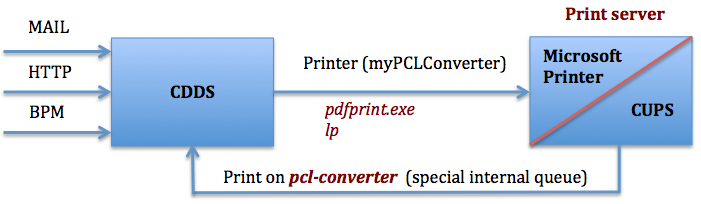
CUPs (Common Unix Printing System) is a print server which uses the Internet Printing Protocol (IPP) for spooling print jobs and sending them to printers. PDFPrint is a commercial software from VeryPDF, which runs on Windows operating systems, and can convert documents to PCL files sending them to printers.
Configure local printer
Before proceeding with the configuration tool settings, define a local printer on your system, as described below.
If a local printer has the IP Address configured with the Genius Server IP address and the queue name set to PCL-converter, the converter works properly.
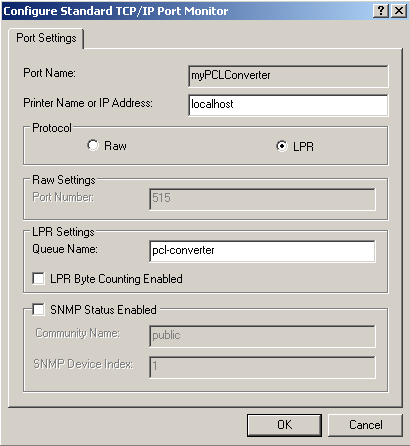
IP address is the Genius Server IP address.
LPR port used in the configuration is the default port on Windows: 515.
Warning
In case of print job queue issues, set the IP Address as 127.0.0.1
Configuration (Windows)

Base
Fill in the configuration fields for Windows operating systems:
Enable: if checked, it enables the feature.
Printer name: the name of the local printer configured in your environment (see Configure local printer).
Full path of pdfprint.exe [Advanced]: the path to the pdfprint.exe.
PDF Print options [Advanced]: COMMON JOB OPTIONS -paper 9 -paper "pdf" -paper "215.9x279.4mm" -orient 1 -pdforient 3 -firstpage 1 -lastpage 1 -scalex 50 -scaley 50 -duplex 3 -color 1 -xres 600 -yres 600 -xoffset 200 -yoffset 200 -scale 50 -shell -shelltime 5000 -raster -raster2 -rasterbitcount 1 -rasterbwtext -rasterbitcount 1 -shell2 -preproc -printermargins -nochgprinter -chgbin 15 -papersource "auto" -winfont -winfont2 (see ${phoenix.base}pdfprintreadme.txt).
Timeout pdfprint.exe [Advanced]: configured timeout for pdfprint.exe.
Print Test Page
Before you test the PCL Converter, configure a local printer on your operating system, which can send print jobs to Genius Server in the pcl-converter queue (for further details, refer to the Configure local printer section).
To proceed to the test, click on Print Test Page, enter the Queue (the target printer, where a test page is printed) and a generic User, and click on Test.
If the local printer is correctly configured, the result shown is Test page sent!, if the local printer is not correctly configured, the fields colors in red.
To save changes made, press the Save Changes button and the Back.
Note
After configuration changes are made, restart the Genius server.