
Abbyy FineReader Engine 12
Abbyy FineReader is an Optical Character Recognition (OCR) software. OCR is a technology that enables you to convert different types of documents, such as scanned paper documents, PDF files or images into editable and searchable data.
With Abbyy FineReader Engine 12, even more possibilities open up for the user.
Two new formats to export to are supported: ODT and VCF business cards. Note that if VCF is chosen this needs to be chosen as the main output format.
The Abbyy debug log can be added to a BPM variable.
Inside the Abbyy node the user can now choose how many pages per file should be generated, e.g. the user can turn one multipage document into two single page documents.
Requirements
FREngine Application (Download FREngine application from Genius Bytes Homepage, a user account is required).
A valid license.
A Windows server.
Warning
Genius Server currently requires a Windows OS for ABBYY 12, Linux Systems are not supported.
Installation
The installation packages are available in the download area. To access the download section, users must create an account. To receive login credentials, contact the support at support@geniusbytes.com.
There are two ways to install Abbyy FRE 12, namely using the installer or using the command line, to install. The latter is described at the end of this chapter.
Note
The ABBYY FineReader Engine stores temporary image files in an internal format. You can specify the path to this folder by either changing IFRDocument::TempDir or setting it in the InitializeEngine() function. The default path is %TEMP%\ABBYY FineReader Engine 12. Even if the path for temporary files was changed, some files can be written into the default temp folder.
Using the Installer
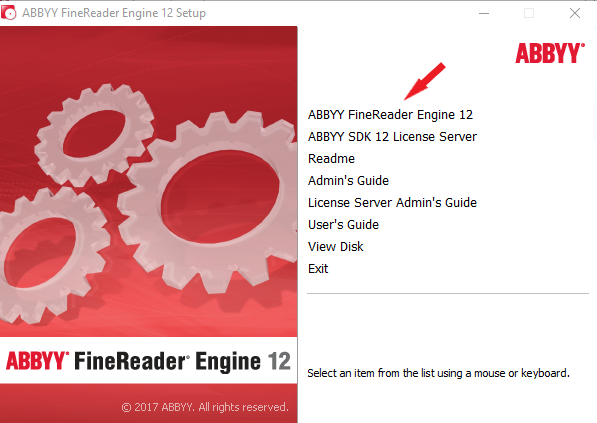
To install the Abbyy OCR FineReader Engine 12, extract the files, downloaded previously from the download area. After the successful extraction, run the AutoRun.exe and click on ABBYY FineReader Engine 12.
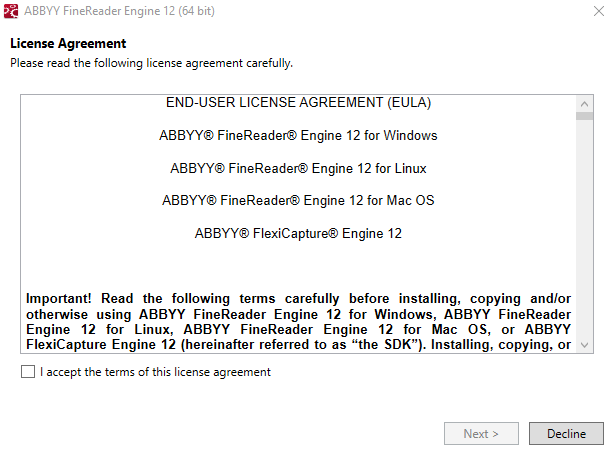
Read the EULA and check "I have a valid license and I wish to install the Software". Then click Next.
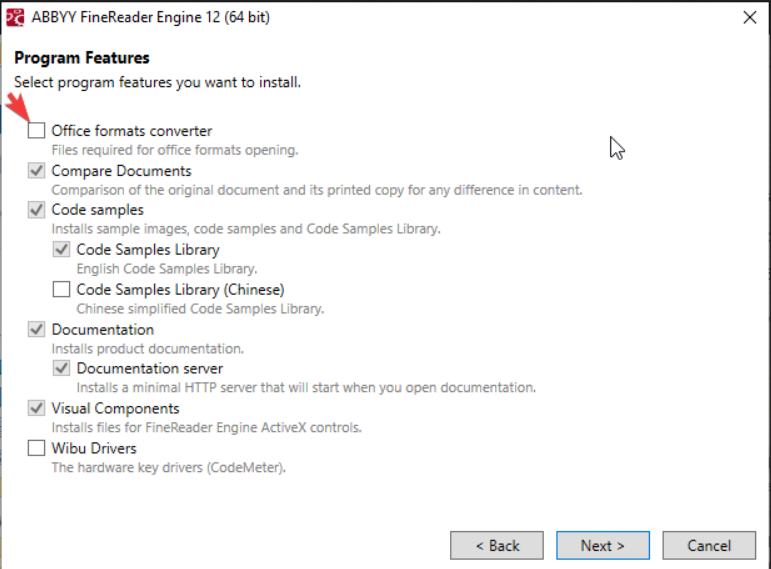
The next window will ask what features are to be installed. Select the features as shown below and click Next. Note that office formats converter should be unchecked.
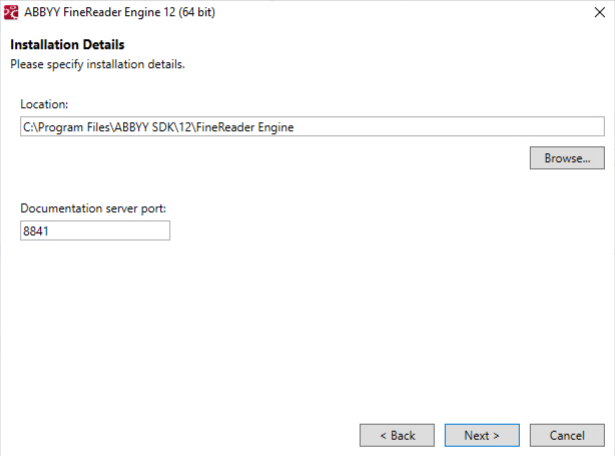
Specify the installation path and the documentation server port and click Next:
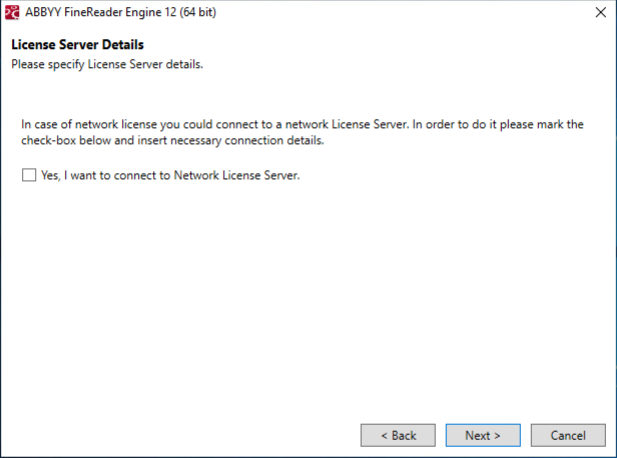
If necessary connect to the network license server and click Next.
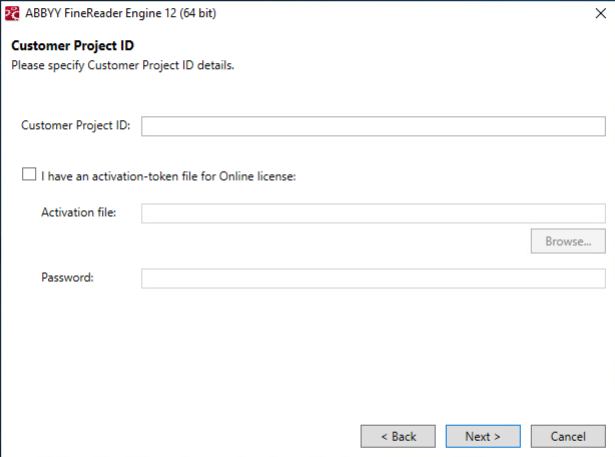
Leave the field Customer Project ID empty and click Next.
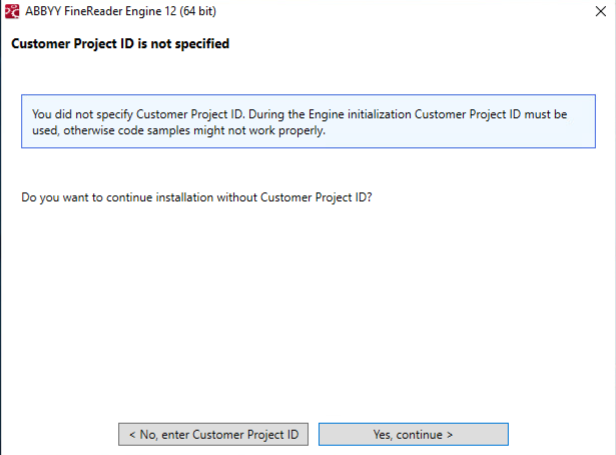
A warning message will pop up regarding the missing Customer ID. Click Yes, continue.
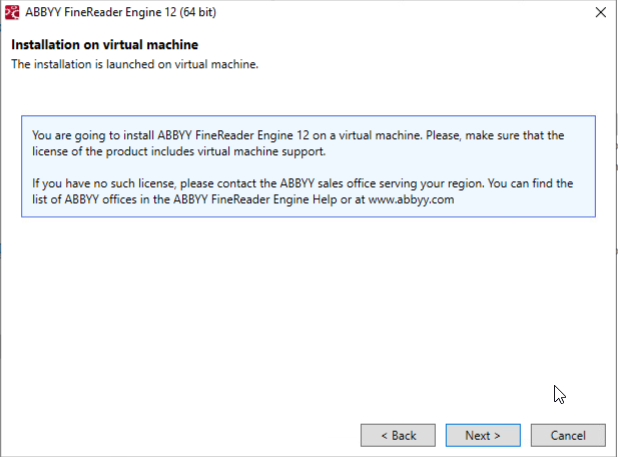
(optional) If the Abbyy FineReader Engine is to be installed on a virtual machine, a prompt will appear. Click Next.
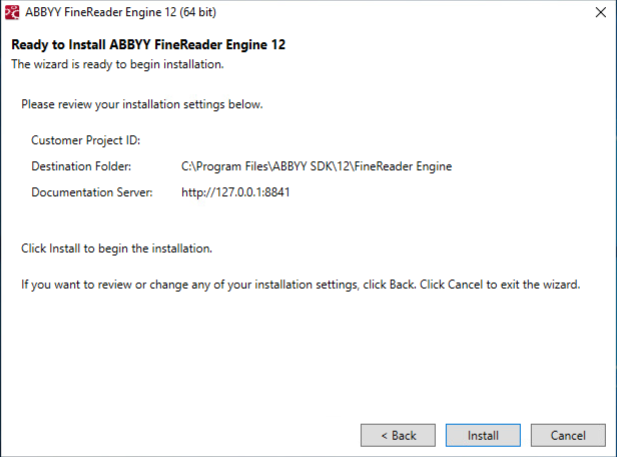
The next window confirms all previously set settings. If something is wrong click Back and change the settings accordingly. If everything is correct, press Install.
Warning
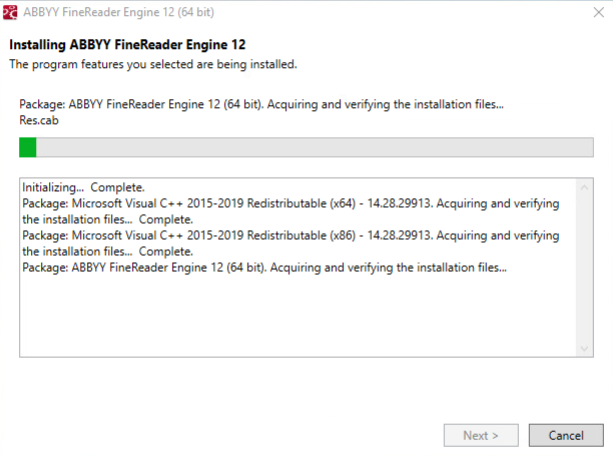
ABBYY FRE 12 has some dependencies to Windows components which are installed automatically when running the installer. Not all dependencies are installed at once, which means, that steps 1 to 7 have to be repeated multiple times, until all dependencies are installed. When the installer does not show Installing the package ABBYY FineReader Engine12 (64bit) in the process of the installation, step 1-7 need to be repeated since not all dependencies have been installed yet. Note that it might also require a restart of the VM/device where ABBYY FRE 12 has been installed, so plan accordingly.
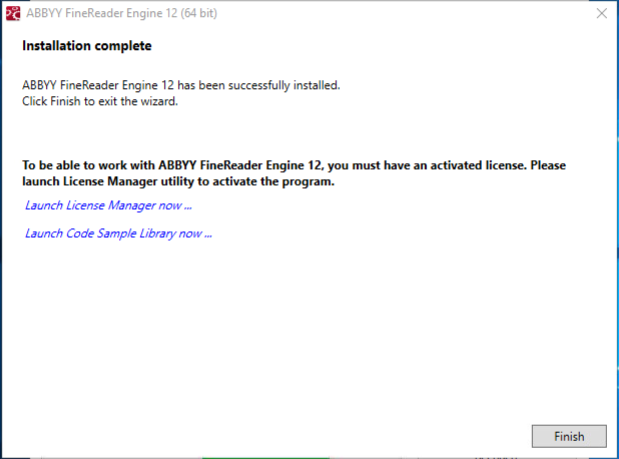
Abbyy FineReader Engine 12 has been successfully installed.
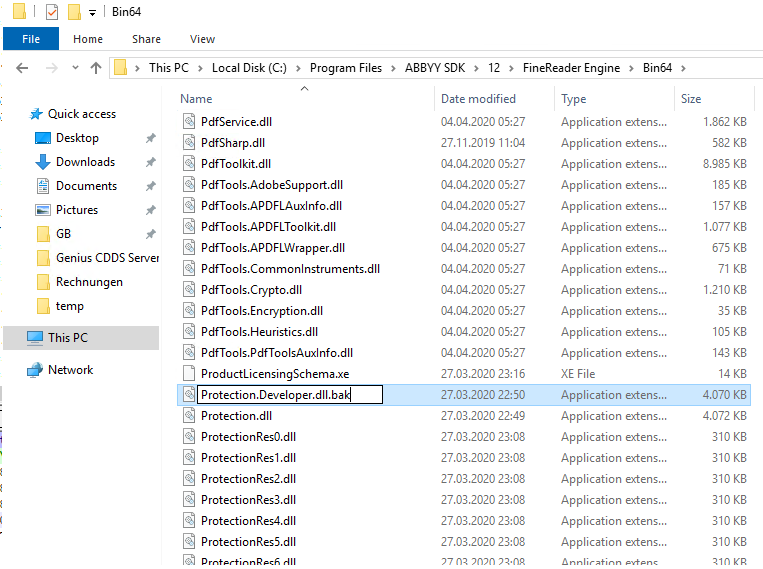
Go to the installation folder of the Abbyy 12 SDK, configured in step 3. Navigate to Abbyy SDK -> 12 -> FineReader Engine -> Bin64 and rename the file Protection.Developer.dll to Protection.Developer.dll.bak. Per default the path would be:
C:\Program Files\ABBYY SDK\12\FineReader Engine\Bin64
Now the Genius Server is ready to use ABBYY FineReader Engine 12.
Make sure that the engine is set correctly inside the Genius Server.
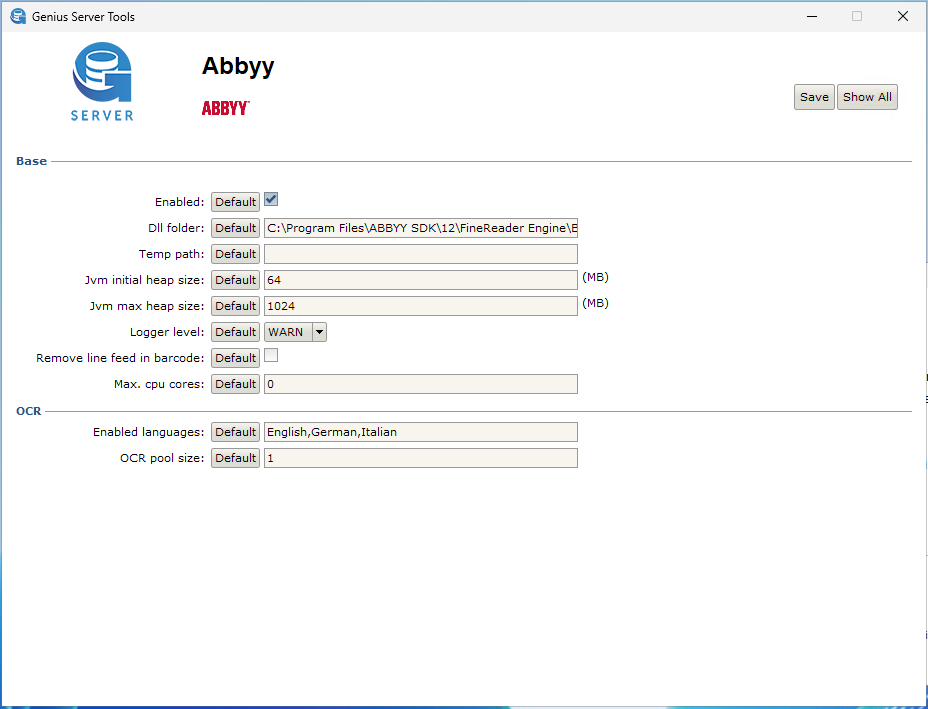
For this, login on the machine where Genius Server is installed, open the configuration tool, click on Advanced and navigate to MyModule -> Abbyy.
Set the DLL folder according to your chosen installation path, by default this is: C:\Program Files\ABBYY SDK\12\FineReader Engine\Bin64.
Also, make sure to select v12 as Abbyy Engine and click Save.
Note
Administrators who have worked with ABBYY FineReader Engine 10 licenses before might notice, that there is no section on how to activate the license. Activating the license is not necessary for ABBYY FineReader Engine 12 licenses since this is fully covered in the Genius Server license.
Installation with Command Line
A completely quiet install is not possible at the moment, but the installation via CMD command is supported.
Open the command line. Enter
installRnt64.exe INSTALLDIR="C:\MyFolder" RegisterCOM=Yes LICENSESRV=Yes WIBUDR=NoThis will start the installation process. If you are familiar with using the installer, you remember that the "ProtectionDeveloper.dll" file needs to be changed. With this method however, the file will not appear in the bin64 folder, so there is no need to rename it.
Note
If you set WIBUDR to "Yes" instead of "No", the ProtectionDeveloper.dll file will appear and needs to be altered to Protection.Developer.dll.bak. Please refer to step 9 of the previous installation section. RegisterCOM and LICENSERV should always be set to "Yes" or else the installation will fail.
After Installation
To prevent errors during OCR processing via the Fine Reader Engine put exclusions in antivirus / anti-malware / live scanning software for the following folders:
C:\Program Files\ABBYY SDK\12\FineReader Engine\*, C:\Program Files\Genius CDDS Server\* and C:\ProgramData\ABBYY\SDK\12\*.
One such error could be Unable to load Abbyy FineReader engine: com.abbyy.FREngine.EngineException: There are no licenses ..., so if you experience this error, try adding the above mentioned folders into the exclusion list for your security software.