
Printing

The printing module of Genius Server manages print jobs sent through the direct and pull printing. Genius Server accepts print sent via LPR, IPP and IPPS.
In this section, the anonymization of print jobs can be configured. After the explanation of the print engine architecture follows the explanation of the advanced settings of this section.
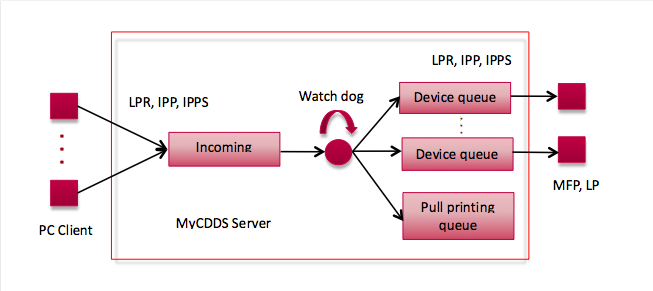
Printing Engine Architecture
The printing engine of Genius Server consists of the following elements:
Print Server: one or more modules enabled to accept print jobs sent via different protocols (LPR, IPP, IPPS).
Incoming queue: the generic queue where print jobs are received.
Watchdog: a component which forwards print jobs from the incoming queue to the destination queue.
Device queue: the printing queue of a physical device.
Pull printing queue: the queue which contains pull printing jobs.
When a print job is received through one of the active protocols, Genius Server puts it into the incoming queue. This queue stores the raw data of the print job, but the destination queue is still unknown at this point.
In the incoming queue there is a watchdog, an element of the system which, at every execution, takes a number of print jobs from the incoming queue, analyzes and sends them to a destination queue:
to the queue of a specific device, in case of a direct print.
to a pull printing queue in case of a pull print.
Device queues are related to a physical device and are created as soon as a print job is sent to a device. The job spooling is managed by Genius Server. Every queue has its own processing strategy associated (FIFO, LIFO, ect) and different protocols supported (LPR, IPP, IPPS).
Advanced Features
In general, Genius Server extracts the print job owner (username) from the print job. In the cases below the extraction is not possible:
SAP printing environments,
if the PC username is not in the Genius Server (e.g. when an AD or LDAP provider is not configured),
if there are conflicts caused by two PCs of different users that use the same username or
printing for clients that do not include the username of the print job is allowed.
These settings allow to get the print job username. The administrator can also modify the print job owner trough the username normalization.
General
In the general section, users can configure the printing engine:
Internal user auto creation: if checked, anonymous users can print and enables the automatic creation of new internal users. This configuration only affects users known by the server (and does not affect users who are related to an external authentication systems such as LDAP or AD).
Device auto creation: if checked, it enables the automatic creation of a device in system.
User mapping: if enabled, the Printing module resolves usernames that are not in the active directory and/or users that are not in the authentication providers (e.g. A user "admin" coming from a legacy server that needs to be re-mapped to active directory user "joe"). For further details about how to create a new user mapping, refer to User Mapping).
Administrative mask for document name [Advanced]: with this setting the administrative mask for document names can be enabled or disabled to hide document names from administrators.
Fixed length administrative mask for document name [Advanced]: if this is set to true, only a fixed number of characters is masked of document names.
Number of unmasked suffix chars [Advanced]: the number of unmasked characters in document names.
[Advanced] Printing
Queue manager page size: the number of print jobs processed by the watchdog for each execution.
Retry on different queue: the incoming print job management from the Administrator Web Console. Users can change a queue for incoming print jobs.
Incoming errors retry waits: the amount of time to wait to retry between incoming errors in seconds.
Incoming errors retry time: the timeframe for retrying incoming jobs in hours.
Printing ETL execution enabled: if checked, the ETL execution is enabled.
Printing ETL anonymization enabled: if checked, the ETL printing anonymization is enabled.
ETL execution query page size: it produces the pivot table, and specifies how many records are managed in the report.
Printing ETL execution cron: a scheduling time expression of Printing ETL. To modify its cron expression, press the Edit button, enter the expression and then press Save.
Quick dispatch incoming job: a strategy to quickly dispatch incoming print jobs. It is useful for clients with a high load of documents to print. Nevertheless, it may not guarantee the order of arrival favouring smaller prints job, even if arrived later. Note that this must be checked if a Genius PC Client that uses light printing is used in the tenants environment.
Cleanup execution cron: the cron expression for the cleanup of the incoming queue - for further details, refer to the Cron Trigger Tutorial (Quartz Cron) sections.
Direct Printing
Cleanup execution cron: the execution timer for the clean up engine related to binary data of the direct prints - for further details, refer to the Cron Trigger Tutorial (Quartz Cron) sections.
Maximum job age [Advanced]: the maximum time to store binary data.
Watchdog scheduler page size [Advanced]: the page size of the direct printing queue watchdog.
Watchdog scheduler interval [Advanced]: interval time between a scheduling process activated by the watchdog and the next one.
Priority strategy: the default strategy to establish print job order. It can be:
FIFO: print jobs are processed in order of arrival.
LIFO: the last print job arrived is immediately processed.
BY_USERNAME: the scheduling starts in FIFO mode. Jobs related to the same username are processed in succession. When the Priority strategy threshold expires, the processing continues as it was in a FIFO queue.
BY_USERNAME_LIFO: print jobs related the same username are processed in order of succession. When the Priority strategy threshold expires, the processing continues in LIFO mode.
Priority strategy threshold [Advanced]: threshold to consider a print job, a member of the open accounting session.
Device busy timeout [Advanced]: waiting time before the device is ready to read counters.
Accept unreachable device jobs: print jobs addressed to unreachable devices are in WAITING status until the device returns available.
Accept jobs when SNMP is down: if checked, it tries to print a job even if the SNMP connection is broken (IPP/LPR connection is required). An accounting session cannot be open when the print is performed.
Retries on error: number of attempts to finalize the printing function when an error occurs before reporting it on the database.
Sleep on error: the sleep time (in seconds) before starting the printing finalization attempts.
Stalling print jobs execution cron [Advanced]: a scheduling time expression to verify the print jobs which have been in the queue for a long time.
Stalling print jobs threshold [Advanced]: the time -in minutes- after which if the print job is still in the queue, the system verify whether they are stuck.
Stalling print jobs max results [Advanced]: the maximum number of print jobs to be controlled.
Auto restart stalling queues [Advanced]: if checked, the automatic start and stop of the queue is enabled.
Pull Printing
The pull printing section allows administrators to configure the pull printing queue for the print jobs which arrive to the Genius Server. In this area you can set:
Queue name: the name of the queue.
Pull printing default order [Advanced]: the default order in which to show pull printing jobs. It can either be newest or latest first.
Cleanup execution cron: cron expression that determines, when expired print jobs are deleted. For further details, refer to Cron Trigger Tutorial (Quartz Cron).
Maximum expire age [Advanced]: the print job expiration time (in minutes). The job is removed from the pull printing queue, and it is not printable anymore. Its binary data are still stored on the server.
Maximum deletion age [Advanced]: time of print job physical deletion (in minutes). The binary data is deleted from the storage. This time should be longer than the setting maximum expire age.
Job history retention period [Advanced]: the amount of time that print jobs stay in the history before they are deleted.
Time between jobs [Advanced]: the time of delay between the spooling of two printjobs.
Pull printing default order: the default order in which pull printing jobs are shown. Possible values are NEWEST_FIRST or OLDEST_FIRST.
Pull-Printing print strategy: the default strategies to establish print job order. It can be:
FIFO: print jobs are processed in order of arrival.
LIFO: the last print job arrived is immediately processed.
Pull Delagation enabled: if checked, it enables the pull delegation on administrator web console. Thus, a user can delegate another user or a group of users to take his print job(s). To delegate a user, or a group of users go in GWeb -> delegated pull printing users or delegated pull printing groups.
Pull printing auto release enabled [Advanced]: if this setting is set to on, it is possible to configure pull printing auto release on the /admin website. Pull printing auto release is a feature, that allows users to automatically print all pull printing jobs in their list on login. For the setting to work, this switch must be flipped to on. Also, the feature needs to be configured on
<hostname-or-IP-of-Genius-Server>:8080/admin. For more information, refer to the corresponding section in Print Management.Number copies strategy [Advanced]: choose here what strategy should be used to ensure that multiple copies can be sent.
Job Analysis
Enable: if checked, job analysis are enabled.
Note
If this setting is globally enabled in the Genius Server configuration tool, this setting cannot be deactivated locally. If the setting is globally disabled in the configuration tool, the tenant admin can still enable this setting locally for their own tenant environment.
Internal job analysis spooling streaming [Advanced]: if checked, it enables the internal job analysis spooling streaming. This means: without streaming, the file is first transferred and written, then the print job analysis is started and completed and then the file is processed. With streaming activated, the print job analysis is carried out at the same time as the file is written.
File types to skip [Advanced]: here you can enter file types, that are to be skipped by print job analysis. Use semicolons to separate the file types.
Rules
Enable: if checked, print rules are enabled.
Note
Print rule conditions which manage the print job information as number of pages, side, color, number of copies and format, require the job analysis activation.
Warning
Using PS drivers (or more in general print drivers that use RGB or CMYK as color mode), the information about the print job color mode cannot be reliable.
Cleanup
Delete old database records: if checked, database records are deleted.
Keep database records for N days: the number of days that database records are stored.
Cleanup time between jobs: milliseconds after which the cleanup is performed.
Cleanup records page: the page size of a cleanup records.
Max cleanup records: the maximum number of records to clean up during every iteration.
Security
Using this section, users can encode binary data from the Printing engine, before storing it in the File System. The encryption is performed by AES 256 bit algorithm.
Encrypt incoming http print jobs: if checked, it enables the encoding for print jobs arrived via HTTP (e.g. Mobile clients,for further details, refer to [Advanced] Http Printing).
Encrypt incoming mail print jobs: if checked, it enables the encoding for mail printing (for further details, refer to Mail Printing).
Encrypt received print jobs: if checked, it enables the encoding for received print jobs.
Encrypt dispatching print jobs: if checked, it enables the encoding for print jobs dispatched to direct or pull-printing queues.
User and group encryption enabled: if checked, the encryption for users and groups is enabled.
[Advanced] Orphan Binary Data Check
Orphan binary data check enabled: if checked, the orphan binary data check is enabled.
Delete automatically orphan files found: if checked, orphan binary data gets deleted automatically.
Orphan binary data check execution: a scheduling time expression to check for orphaned files. To modify its cron expression, press the Edit button, enter the expression and then press Save. For further details, refer to Cron Trigger Tutorial (Quartz Cron).
[Advanced] Binary Data Folder Structure Cleanup
Two-phase cleanup cron: a scheduling time expression to delete binary files coming from the email, the BPM, the printing, and the DMS modules.
Two-phase deletion maximum age: the maximum age of binary data before being deleted.
Mail Printing
Resolve username strategy: strategy to apply the print job username. They can be:
DIRECT_MAIL_ADDRESS: the username corresponds to the mail address of the sender. Genius Server adds a new user in the internal provider to whom username and email set to the sender mail address are associated.
DIRECT_MAIL_USERNAME: the username corresponds to the account of the sender email address (e.g. if the mail address is test@geniusbytes.com, the username is test). Genius Server adds a new user in the internal provider to whom the username set to the resolved username and email set to the sender mail address are associated.
RESOLVING_MAIL_ADDRESS: the username is taken from the LDAP/AD provider matching the mail address. It requires a correct LDAP/AD configuration and the email filtering. For further details, refer to User mapping section.
RESOLVING_MAIL_ADDRESS_OR_DIRECT_MAIL_ADDRESS: it tries to resolve the username from the mail address, otherwise it uses the direct mail address as username.
Mail body print enabled: if checked, the printing of the body of the mail is enabled.
Spooler cron [Advanced]: the execution cron expression for spooling the mail printing, for further details, refer to Cron Trigger Tutorial (Quartz Cron).
Polling enabled: if checked, mail polling is enabled.
Check mailbox cron [Advanced]: the scheduling time for checking the mailbox, for further details, refer to Cron Trigger Tutorial (Quartz Cron).
Mail server store protocol: the protocol used to store emails. It can be IMAP, IMAPS, POP3, POP3S.
Mail server host: the hostname of the mail server.
Mail server port: the port of the mail server.
Mail server inbox username: the username of the mail inbox.
Mail server inbox password: the password of the mail inbox.
Confirm Mail server inbox password: the password entered in the upper field.
Azure OAuth enabled: if checked, modern authentication via oauth is enabled (will work for IMAP only, POP3 is currently not supported). This will require a registered application to be configured in Azure. Do not forget to copy the application id, since it will be needed, too. For more information regarding Microsoft Azure configuration, please refer to MS Azure Configuration. Only the Azure Application Authentication needs to be configured. The following api-permission will be required:
IMAP.AccessAsUser.All (Delegated)
Azure application id: the Azure application (client) id.
EMAIL-Printing errors notification enabled: when enabled email print notifications are enabled.
EMAIL-Printing errors notification subject template: the template for the notification e-mail subject.
EMAIL-Printing errors notification body template: the template for the notification e-mail body.
Connection timeout: the connection timeout to a non reachable mail server.
Fixed queue enabled: if checked, by default the printing email target queue is the Mail poller fixed queue. Otherwise, the name queue should be specified in the email subject.
MailPoller fixed queue: the name of the printing queue which receives the emails to print.
Queue in recipient: if checked, it enables the queue for the recipient.
[Advanced] PC Client
PC Client: if checked, users can print through the Genius PC Client if it is installed.
Note
Note that in a multi tenant environment, the administrator needs to enable the PC Client setting for all tenants where the PC Client is to be used. This can be done on the Genius Server conf page, not in the configuration tool. For details refer to the Genius Conf chapter.
PC Client secret: the password to print. To change the password, press the Change password button, enter the new password twice and press the Save button.
Confirm PC Client secret: confirmatione field for the Genius PC Client secret.
PC Client cron job check: cron job to check for active Genius PC Clients.
PC Client alive threshold interval: the alive interval in seconds before Genius PC Clients are checked again.
User search max results: the maximum amount of shown users in the user search field.
PC Client sleep between commands: the amount of time the Genius PC Client leaves between commands in seconds.
[Advanced] TCPConv
TCPConv server printing mode: here the printing mode for TCPConv prints can be set. It can either be Print all jobs or Print last job of the currently logged in user.
[Advanced] Http Printing
This module allows to manage print jobs, which arrive to Genius Server from HTTP connections (instead of LPR). The HTTP printing feature is available for printing emails or documents on the Genius Mobile application. This module converts binary data into a PDF format and sends them to the incoming queue. The process can be integrated by a conversion of the PDF document in a PCL file. The conversion is performed by a PCL-Converter printer, defined in your environment.
Http printing: if checked, the HTTP printing feature is enabled (it is true by default).
Spooler cron: the execution cron expression for spooling the HTTP printing jobs, for further details, refer to Cron Trigger Tutorial (Quartz Cron).
[Advanced] Anonymization
Using this section, users can anonymize the information related to the documents sent to the printer and to the users themselves who have performed the printing. You can set:
Document name pattern enabled: if checked, it enables the anonymization of document names.
Document name pattern# (#=1…5): the ability to specify different patterns matching for document name.
(@PJL SET JOBNAME = ")(.*)(")
(@PJL JOB NAME = ")(.*)(");
(@PJL JOB NAME=")(.*)(");
(@PJL COMMENT DOCNAME=")(.*)(");
(@PJL SET JOBNAME=")(.*)(");
(%%Title: )(.*)();
Username pattern enabled: if checked, it enables the anonymization of usernames.
Username pattern# (#=1…5): the ability to specify different patterns matching with the user name.
(@PJL SET USERNAME=")(.*)(");
(@PJL COMMENT USERNAME=")(.*)(");
(@PJL COMMENT "Username:)(.*)(");
(@PJL SET HOSTLOGINNAME = ")(.*)(");
(%%For: )(.*)().
[Advanced] Pull Printing External Providers Synchronization
Asynchronous mode: if checked, the asynchronous mode is enabled.
Asynchronous refresh seconds: the amount of seconds after which Genius Server automatically refreshes data, which are taken from the external provider.
Asynchronous refresh timeout: The time (seconds) the system waits for the synchronization to complete.
Asynchronous retries: number of attempts of reactivation of the external provider.
Server URL for print roaming: the server URL for print roaming.
[Advanced] PJL
The username overriding is based on PJL (Printer Job Language).
PJL is an extension of the Printer Command Language (PCL), which switches the printer languages at the job level. It is supported by most PostScript printers. Some of its functions provide job separation and printer configuration.
PJL is needed for all environments that are using SAP printing. In those environments, the user name obtained from LPR protocol is always a generic system user.
Maximun PJL header size:the maximum header size of PJL information.
Use username from PJL: if checked, the username is taken from PJL.
PJL username attribute: the username taken from the PJL header of the document.
Use document name from PJL: if checked, the document name is taken from PJL.
PJL document name attribute: the document name taken from the PJL header of the document.
Note
PJL sends printer status information to the host. The response is in a readable ASCII format that always begins with the @PJL prefix and ends with a <FF> character.
[Advanced] Advanced Features
Override username by queue: if checked, the queue overrides the user name.
Username / Queue separator: a separator value. Genius Server skips the separator in order to extract the right username.
Normalize usernames: if checked, usernames are changed according to the normalization expression.
Username expression: the expression for the normalization of usernames. The username variable can be used to access original usernames.
Normalize document names: if checked, the document names are changed according to the normalization expression.
Document name expression: the expression for the normalization of document names. The variable documentname can be used to access the original document names.
Note
In Normalization expression and Document name expression fields, generally there is a variable. Variables are special words enclosed within ${ and } and used as expressions. Characters which are not part of the expressions (${variable}) are treated as plain text and are concatenated.
[Advanced] Send Email Error Notification
LPR errors notification enabled: if checked, the LPR error notification is enabled.
LPR errors notification subject template: different mail subject templates to send the LPR error.
LPR errors notification body template: different mail body templates to send the LPR error.
IPP errors notification enabled: if checked, the IPP error notification is enabled.
IPP errors notification subject template: different mail subject templates to send the IPP error.
IPP errors notification body template: different mail body templates to send the IPP error.
HTTP errors notification enabled: if checked, the HTTP error notification is enabled.
HTTP errors notification subject template: different mail subject templates to send the HTTP error.
HTTP errors notification body template: different mail body templates to send the HTTP error.
BPM errors notification enabled: if checked, the BMP error notification is enabled.
Print BPM errors notification subject template: different mail subject templates to send the BPM error.
BPM errors notification body template: different mail body templates to send the BPM error.
EMAIL-Printing errors notification enabled: if checked, the EMAIL-Printing error notification is enabled.
EMAIL-Printing errors notification subject template: different mail subject templates to send the EMAIL-Printing error.
EMAIL-Printing errors notification body template: different mail body templates to send the EMAIL-Printing error.
[Advanced] PrinTaurus
Enabled: if checked, it enables the interaction with PrinTaurus.
Job ID Expression: the expression to retrieve the job ID of a print job.
Hostname Expression: the expression to retrieve the hostname of PrinTaurus from which print jobs are sent.
Timeout: the timeout for the execution of the executable after which the command is canceled.
To save, press the Save Changes button and then Back.
General Information for Printing
The following chapters are not settings, but they should be mentioned here anyway.
Queue name
This feature replaces the print job username with the username specified in the queue.
When a pull-printing printer is created and alex----pullprinting is specified as a queue name (it is also applicable for direct printer), the the Genius Server ignores the print job username from PCL and uses the username specified in that queue name (alex).
Users can change the default separator (----), whereas it may cause conflicts with other user/queue names.
This feature is helpful when:
the PC username is not in the the Genius Server (e.g. when an AD or LDAP provider is not configured).
there are conflicts caused by two PCs of different users that use the same username.
clients' print jobs do not include the username.
Username and document name normalization
In some cases, for example when the incoming print jobs come from an external printing environment, the usernames or document names may contain text that needs to be removed (e.g. if the incoming username is wsmith(sap1), it needs to be normalized to wsmith).
The Genius Server allows users to modify the print job owner or the document name using the normalization expressions.
This feature provides a list of utility functions to perform the normalization.
Basic operators are available as (> <, + - * /, ? :, ...).
Note
If an error occurs or the resulting username/document name if empty, the original name is used.
There is a list of additional functions that may provide useful information about the username/document name (e.g. util:length(username), util:charAt(username,idx), util:indexOf(username,text)).
For a complete list of functions, refer to the java.lang.String documentation.
For further information about regular expressions, refer to the java.util.regex.Pattern documentation.
For futher information about the EL Syntax, refer to the Java Unified Expression Language specification.
Example: Username or document name normalization (username field can be replaced with documentname)
Description |
Example (username: 'Luke-Skywalker') |
Result |
|---|---|---|
Chop off text at the beginning and/or end of the username |
${util:sub(username,5,-1)} |
Skywalker |
Append text to the beginning or the end of the username |
${util:concat(username,'s father')} |
Luke-Skywalkers father |
Replace some text with another in the username |
${util:replace(username,'Luke', 'Anakin')} |
Anakin-Skywalker |
Search for a regex pattern and replace it with some text |
${util:replaceFirst(username, '\\w*', 'Anakin')} |
Anakin-Skywalker |
Convert the full username to lower or upper case letters |
${util:lower(username)} |
luke-skywal ker |
Remove white space characters (space, tab, new line, ...) from the beginning and end of the username |
${username.trim()} |
Luke-Skywal ker |
Search for a regex pattern and remove it from the username |
${util:deleteFirst(username, '\\w*-')} |
Sky walker |
Search for a regex pattern. If the pattern matched parts of the username, all parts are returned. If capture groups are defined with '(..)', only the contents of these groups are returned |
${util:find(username, '^\\w*')} ${util:find(username, '^(\\w*) - \\w*')} |
Luke |
Chaining of functions allows for complex normalization |
${util:concat(util:find( username, '\\\\w*$'),', ')} ${util:sub(username, 0, 4)} |
Sky walker, Luke |