
Introduction to Tenant

Genius Server features multitenancy; in other words a software architecture in which a single instance of software runs on the server and serves multiple tenants that work seperately.
Note that this section is also applicable if a single tenant is configured!
A tenant is an organizational unit representing a company that subscribes to services from a service provider. Users log in and perform their tasks in a specific tenant environment that has its own dedicated configuration. For this the Genius Server has now its own configuration page, presented in the sections below.
Hint
This is the place where you can configure Genius Server settings for single tenants as well as for multiple tenants. Coming from Genius Server version 2, you will find many settings, that were previously located in the configuration tool, here.
Creating Printers In A (Multi)Tenant Environment
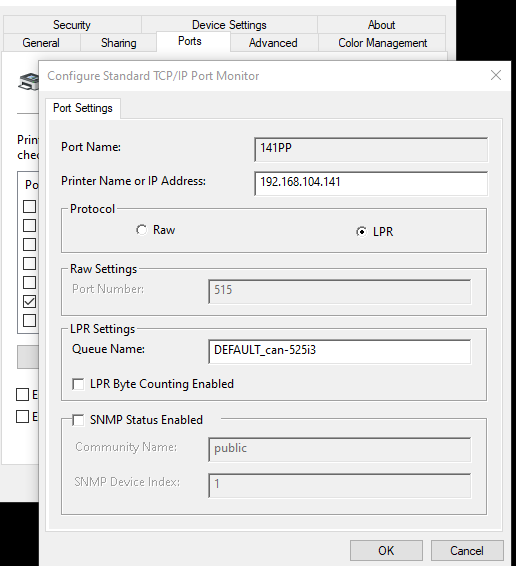
When configuring printers to print to a pull printing or direct printing queue, usually you would set the queue name inside of the TCP/IP-Portmonitor to pull-printing or the hostname or IP of the direct printer.
This is still the case in a single tenant environment.
However if your environment is a multi tenant environment it is mandatory to include the tenant code to the queue name, so for example: DEFAULT_pull-printing, or DEFAULT_printerHostname, as shown below:
Hint
Tenant codes are always 7 characters and uppercase only.
Genius Conf
The Genius Conf administration web page is available entering the following address into an internet browser of your choice. The page should work on all modern browsers:
Server-IP:8080/conf, whereServer-IPis the Genius Server IP.
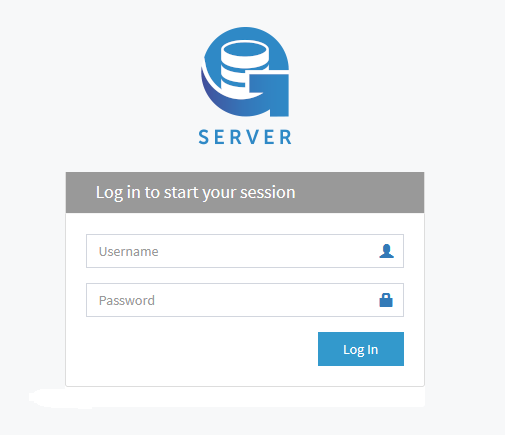
All changes made inside Genius Conf are applied directly and do not require a server restart. But keep in mind that changes to the database require a server reboot.
The default Genius Conf administrator credentials are (if they have not been changed in Genius Server Configuration Tool):
Username: admin
Password: admin
Warning
It is highly recommended to change the default password. To do so, login as administrator, click on Tenant Admin in the top right corner. Click Profile, then Change password, enter the new password and confirm it by entering it again. Press Save.
After you have logged in as administrator, the home page opens:
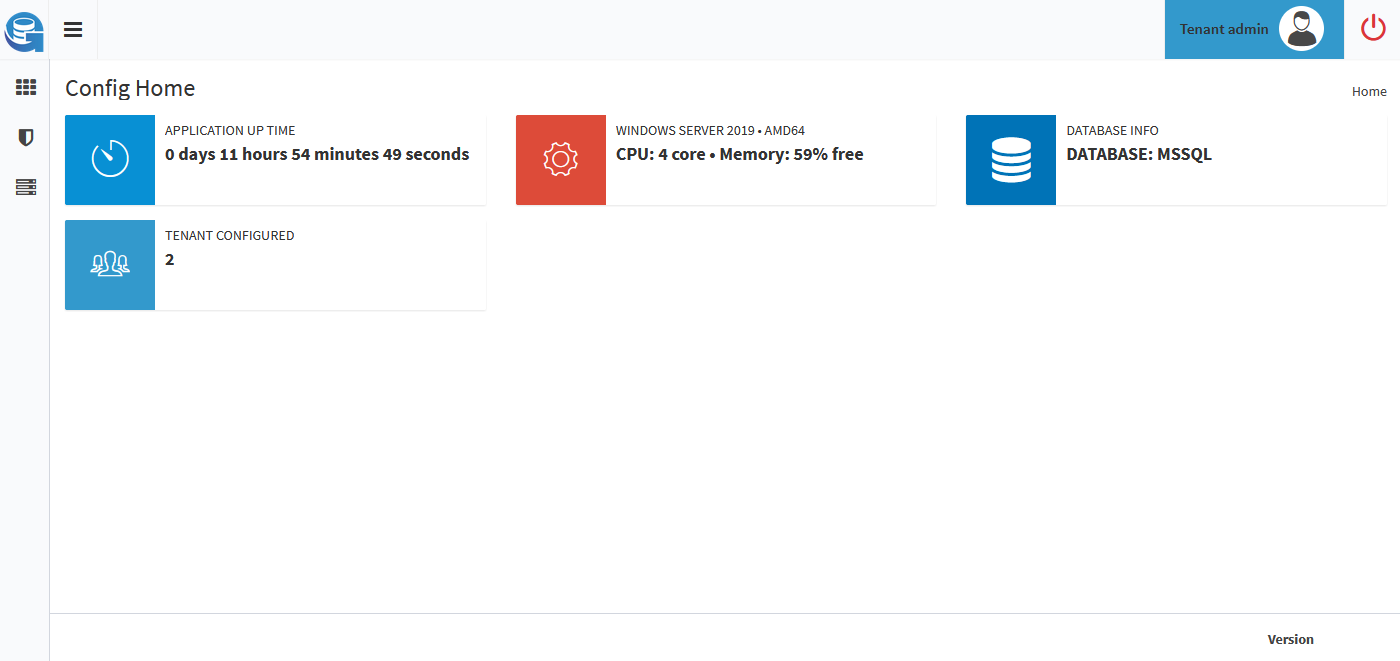
To expand the menu, click on the three lines on the top left:
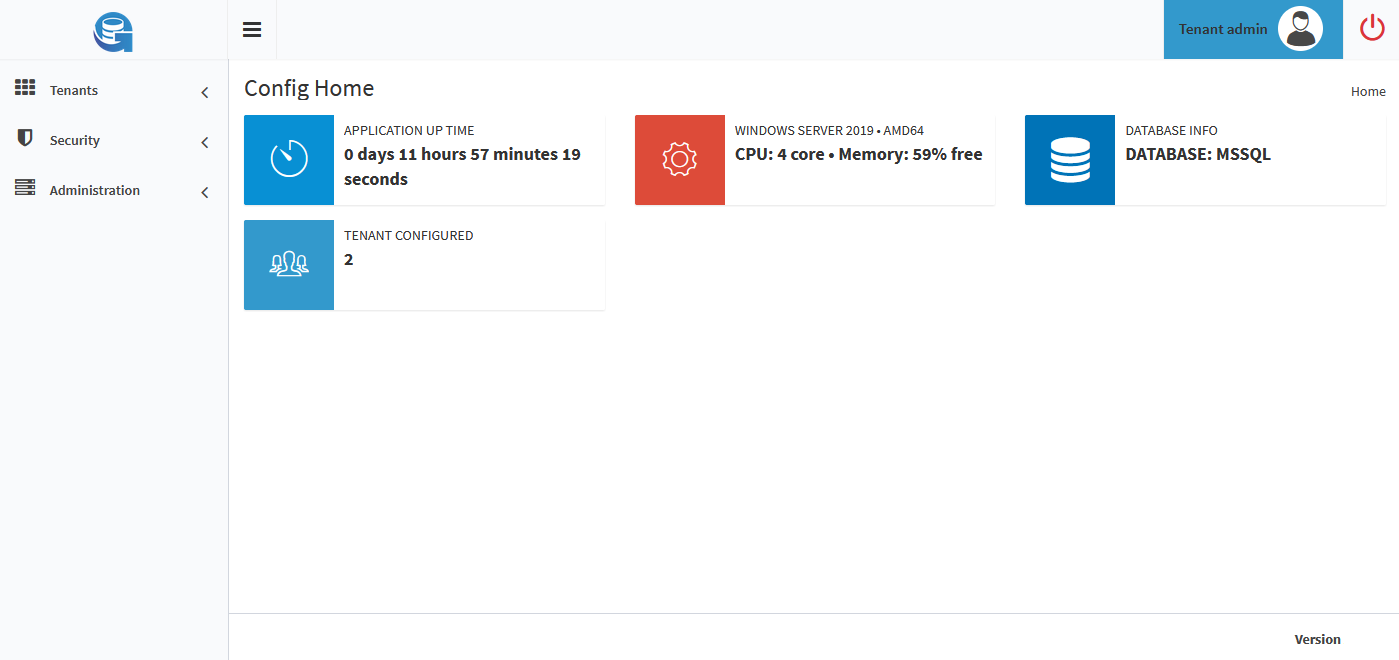
For more information, refer to Tenants, Security and Administration which are described below.