
Genius Server Installation on Linux Environment
In a Linux environment, the installation process of Genius Server is different from other operating systems. This section will assist you when installing Genius Server on an Ubuntu Server OS, like Debian 11.
Requirements
You will need the following tools:
WinSCP (https://winscp.net/)
Putty (http://www.putty.org/)
Debian Server (https://www.debian.org/)
Genius Server Installation File (https://www.geniusbytes.com), e.g., genius-server-3.18.2.0-setup-unix.zip
Database Layout Scripts, e.g., genius-server-3.18.2.0-ddl.zip, usually bundled with setup files
OpenJDK11 (https://adoptium.net/releases.html?variant=openjdk11&jvmVariant=hotspot)
pgAdmin4 (https://www.pgadmin.org/)
Quick Overview
In this section the following actions are explained:
Preparing the OS,
configuring the tools mentioned above,
transfering and install setup files,
installing and configuring PostgreSQL database,
installing jdk,
performing basic configuration of Genius Server, using the graphical UI,
installing license file,
editing service / startup scripts and
troubleshooting.
Preparing the OS
Create User, switch to user
> sudo adduser user > sudo adduser user sudo > su user
Install SSH server
> sudo apt install openssh-server
Check network configuration
> sudo vi /etc/network/interfaces (just to check internet connection)
> sudo apt-get update
install Xorg:
> sudo apt-get install xorg
> sudo vi /etc/ssh/sshd_config, set X11 forwarding to 'yes'
install iptables
> sudo apt-get install iptables
apply forwarding rule to allow print jobs to be sent to VM on port 515, but be internally received by Genius Server on 8515 (because 515 is reserved for cups)
> iptables -t nat -A PREROUTING -p tcp --dport 515 -j REDIRECT --to-port 8515
> sudo apt-get install iptables-persistent
install zip support
> sudo apt-get install unzip
Configure the Tools
Putty
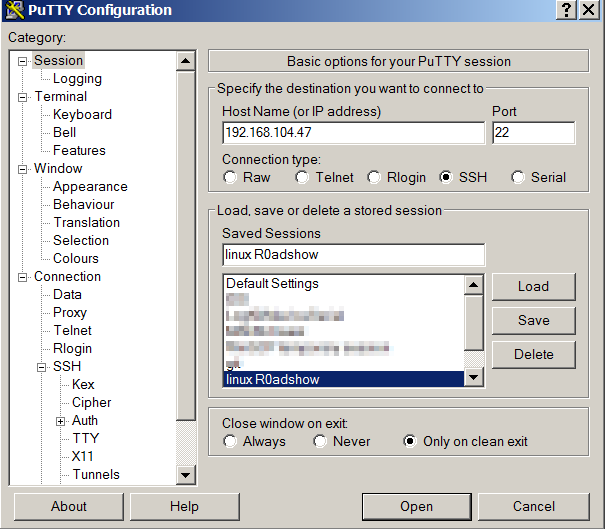
Install and configure putty.
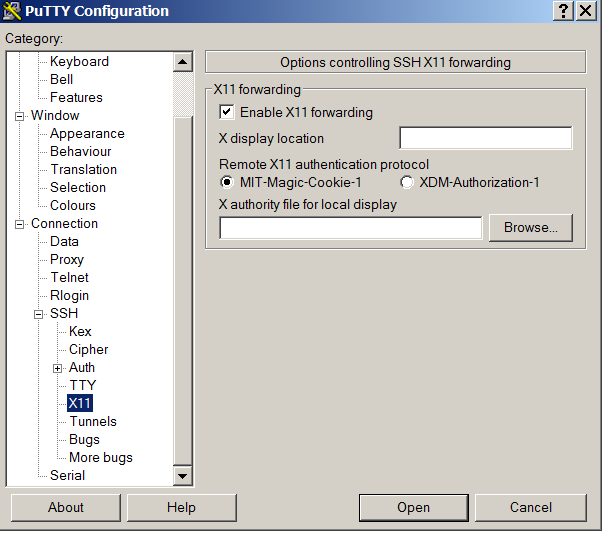
Configure X11 forwarding as shown below.
WinSCP
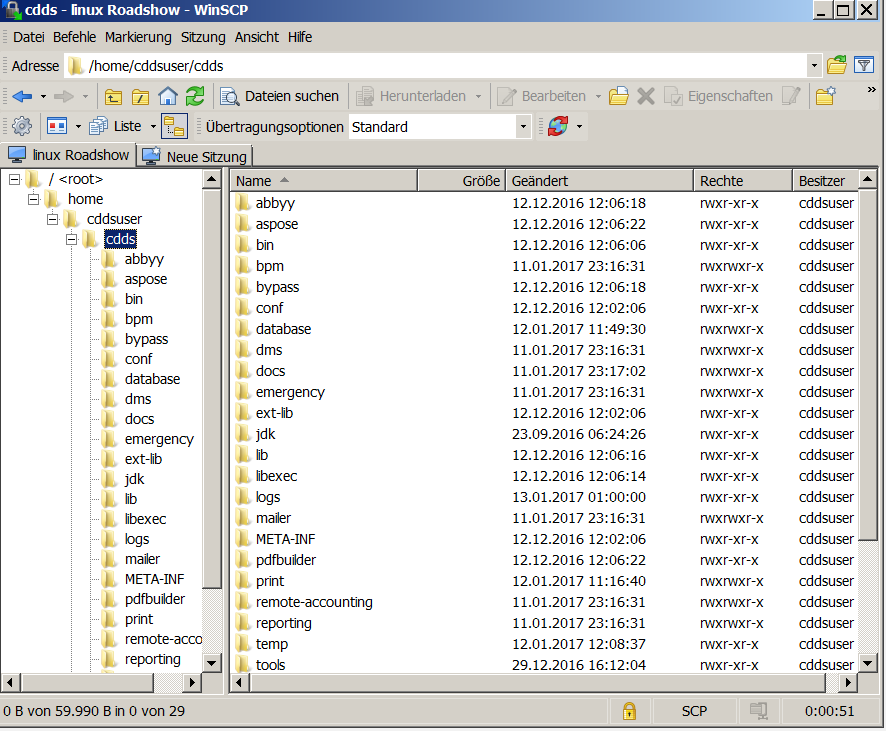
Install and configure winSCP.
You should be able to connect and see a directory overview:
Transfer and Install Setup Files
Create Genius Server base folder:
> mkdir /home/user/cdds > cd /home/user/cdds
Copy genius-server-3.18.2.0-setup-unix.zip into the created Genius Server folder.
Extract Genius Server setup:
> unzip genius-server-3.18.2.0-setup-unix.zip
Install JDK 11
Extract jdk:
> tar -xf OpenJDK11U-jdk_x64_linux_hotspot_11.0.13_8.tar.gz
Rename and move jdk to correct position:
> mv jdk1.8.0_112/ /home/user/cdds/jdk
Add unzipped java to system configuration:
> sudo vi /etc/environment
JAVA_HOME=/home/cdds/jdk
By default the jvm is searched for in amd64 folder but is placed in /lib server, create a link to solve the issue:
> sudo mkdir /home/user/cdds/jdk/lib/amd64 > sudo ln -s /home/user/cdds/jdk/lib/server /home/user/cdds/jdk/lib/amd64
Install and Configure PostgreSQL Database
Install postgreSQL server:
> sudo apt-get install postgresql
Create user:
>sudo su postgres
>psql
>create user cdds;
>alter role cdds with password 'test1234!';
Create a database and make cdds its owner
>create database cddsdb with owner cdds;
Configure the postgresql server
>vi /etc/postgresql/<version>/pg_hba.conf
Add your clients ip or ip range to the hosts to be able to connect via pgadmin (can be removed later)
host all all 192.168.104.0/22 md5
Additional configuration:
> vi /etc/postgresql/<version>/postgresql.con
set listen_addresses = '*'
Restart postgresql server
> sudo service postgresql restart
Optional; if you want to create the database schema with a GUI tool, install pgAdmin4 now and perform connection test:
> run cdds-3.6.0-ddl-create-POSTGRES.sql on cddsdb
Performing Basic Configuration with Graphical UI
This section will only describe the steps necessary to start Genius Server successfully. For more detailed configuration, please refer to the chapter Configuration Tool Overview.
Grant rights to executables:
> cd /home/user/cdds/tools/bin
> sudo chmod 755 *.sh
> sudo chmod 755 /home/user/cdds/bin/genius-cdds-service
> sudo chmod 755 /home/user/cdds/libexec/jsvc-linux-x86_64
Install VxSrv on Windows client and start it.
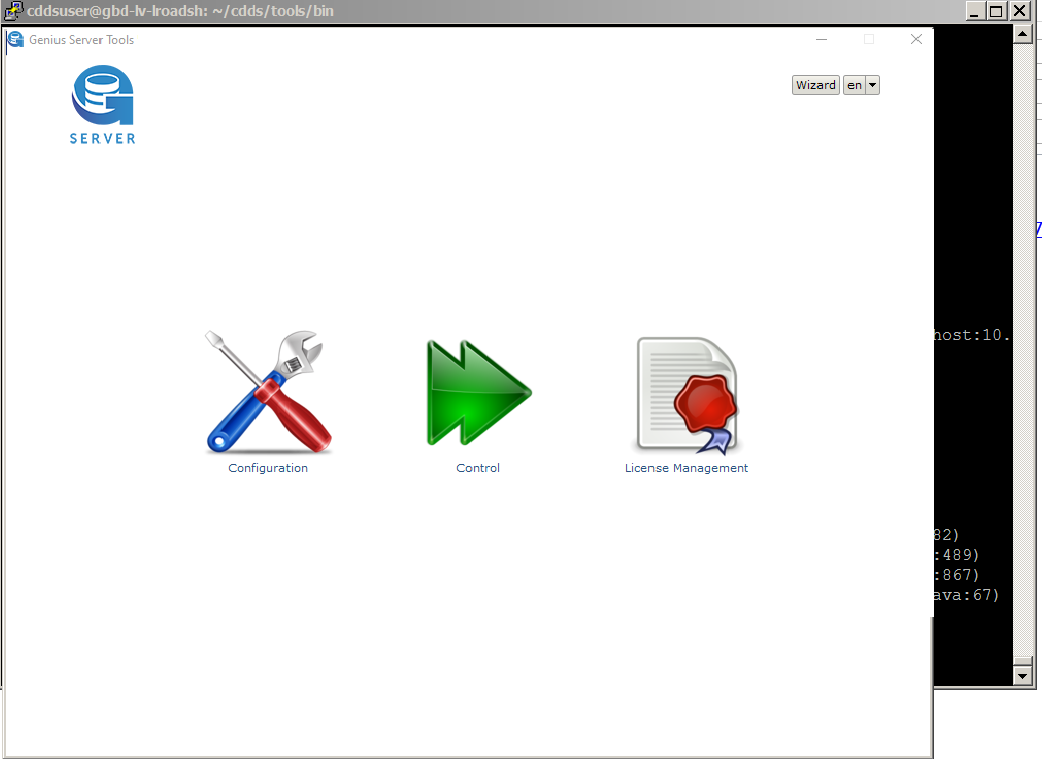
Start configuration tool on Linux server:
> :~/cdds/tools/bin$ ./configuration-app.sh
The configuration app should start now:
Go to the print section (Base -> Printing).
Reconfigure the LPR server's default target port to 8515, save changes.
Go to the web section (Base -> Web)
Open the section and save to create the properties file with the displayed settings.
Go to the database section (Base -> Database)
Load postgresql template, configure connection, perform test.
Installing the License
Copy the my-license.lic file into the /cdds/my-license.lic
If you do not have a .lic file, contact order@geniusbytes.com for aquiring a demo license or the productive license of the customer. Note that the order team will require the installation ID to generate the productive license. Refer to Genius Server License on how to get the installation ID.
Edit Service / Startup Scripts
Perform startup:
Start configuration tool:
> cd /home/cdds/tools/bin
> ./configuration-app.sh
Start Genius Server by using service control.
Set Genius Server to autostart. Genius Server can be launched via a systemd service script like this:
[Unit]
Description=Genius Server Service
After=network.target remote-fs.target
[Service]
Type=oneshot
ExecStart=/home/user/cdds/bin/genius-cdds-service start
ExecStop=/home/user/cdds/bin/genius-cdds-service  stop
RemainAfterExit=yes
LimitSTACK=8192000
LimitNOFILE=32768
LimitNPROC=65536
TasksMax=infinity
[Install]
WantedBy=multi-user.target
The service file e.g., cdds.service, has to be written to /etc/systemd/system/geniusserver.service
Enable the service:
> sudo systemctl enable geniusserver.service
> sudo systemctl status geniusserver
Manual startup or manual stop
> sudo systemctl start geniusserver
> sudo systemctl stop geniusserver
Troubleshooting
Check error log
> vi /home/cdds/cdds/logs/errors.log
check cdds.log
> vi /home/cdds/cdds/logs/cdds.log
zip log folder and send to Genius Bytes support (support@geniusbytes.com)
JAVA_HOME related errors:
explicitly configure JAVA_HOME in /tools/bin/configuration-app.sh or /bin/genius-server-service by adding:
JAVA_HOME="/home/user/cdds/jdk"