
Mail
Genius Server accesses a mail server to send emails. It is necessary for scanning and notification processes.

The basic overview looks like this:
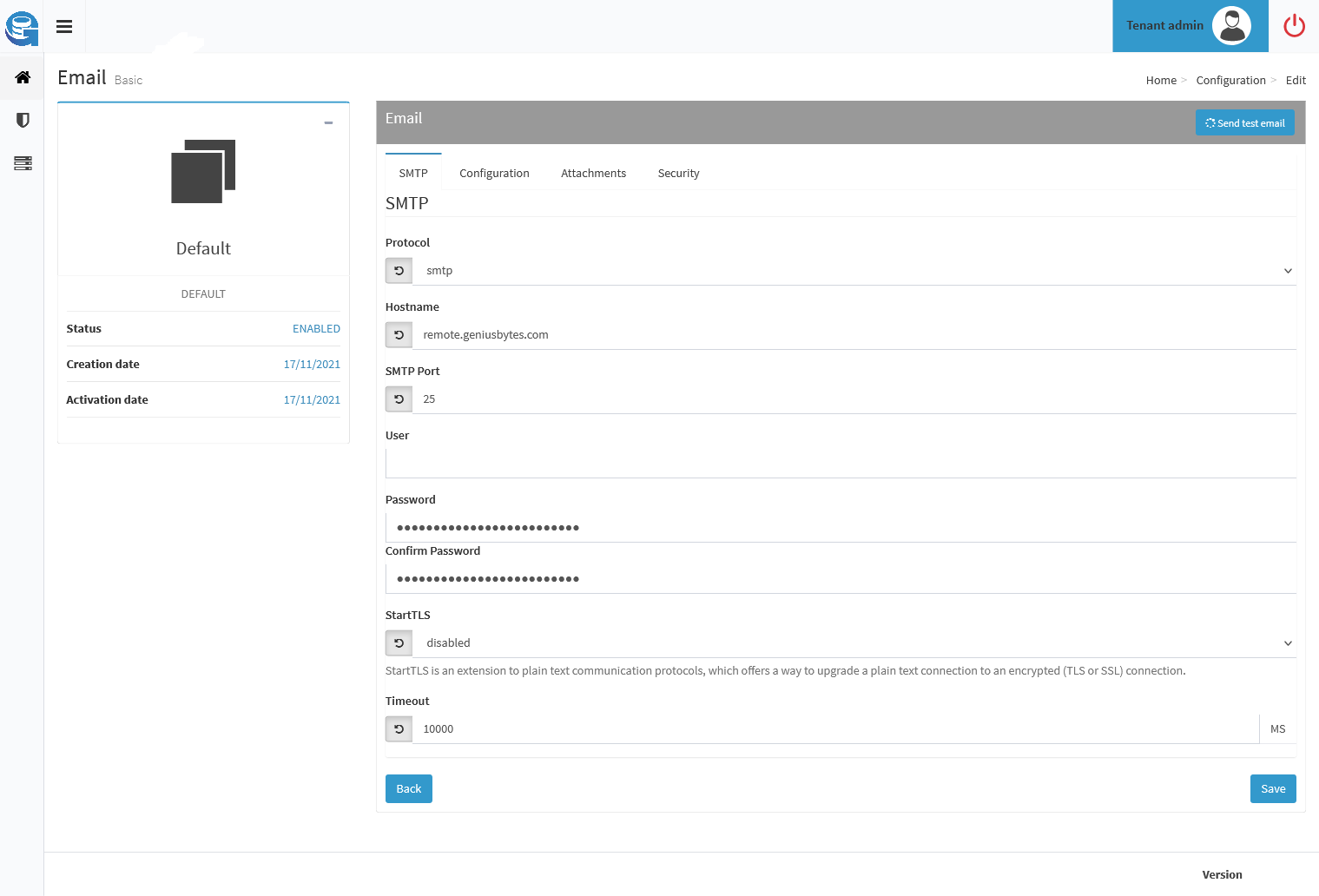
SMTP
The SMTP section allows users to configure the access to the SMTP server. Enter the required parameters:
Protocol: the protocol connection, select SMTP ot SMTPS. To add a trusted certificate to Genius Server, refer to the [Advanced] Certificate section.
Hostname: the hostname of SMTP server.
SMTP Port: the port used to listen (mostly 25).
User: the name of the user.
Hint
Please note that 2-factor authentication must be disabled for this user.
Password: credential used for the authentication. If the authentication in not required for the server, do no fill fields in.
Confirm Password: the password entered in the upper field.
Azure OAuth enabled [Advanced]: enable this to use Azure OAuth2 strategy username and password.
Azure application id [Advanced]: enter the application ID from Azure for this application. No password necessary.
Override BPM Mail node sender address [Advanced]: if enabled all BPM mail nodes will use the sending address from system configuration instead of the configured sending address in the mail node.
Note
Note that the Microsoft Azure application requires the delegated permission SMTP.Send with admin consent. Also, public client flows must be enabled.
StartTLS: it is a way to supplement an insecure communication protocol with a secure connection using SSL/TLS. StartTLS is defined for SMTP, IMAP, POP3, LDAP, FTP and other protocols and even though TLS or SSL connection are used, it avoids using a separate port for the encrypted communication.
Disabled: by default the communication between Genius Server and SMTP server is performed in plain text.
Enabled: Genius Server attempts to use StartTLS with SSL/TLS. If the remote peer does not support StartTLS, or peers cannot agree on a cryptographic protocol and cipher, Genius Server falls back on an unsecured communication protocol.
Enabled and required: Genius Server attempts to use StartTLS with SSL/TLS. If the remote peer does not support StartTLS, or SSL/TLS handshake fails, the connection terminates. No fallback to a connection without security is made.
Note
StartTLS is only used with SMTP protocol.
Timeout: the timeout connection to the server.
Configuration
From: the default sender. This user is used whenever the system is asked to send an email and the user has not specified a different sender.
Max number of attempts [Advanced]: the maximum number of attempts to send email to the SMTP server. If all the attempts fail, an error occurs.
Delay between attempts (sec.) [Advanced]: the waiting time after a failure attempt to send an email (in seconds).
Subject anonymization enabled: if checked, the subject anonymization is enabled.
Sender anonymization enabled: it allows the anonymization of all email senders when emails are tracked by the Genius Server in the Genius Server-Web console.
Recipients anonymization enabled: as the other anonymization options, this one enables the anonymization of recipients.
Purge email enabled [Advanced]: Genius Server tracks all emails sent to the SMTP server. To save the disk space, you can delete the stored emails enabling the purge system.
Purge email execution cron [Advanced]: the execution cron of the purge. It defines how often the stored email are deleted, for further details refer to the Cron Trigger Tutorial (Quartz Cron) sections.
Email lifetime [Advanced]: the lifetime of the emails.
MIME address strict [Advanced]: enables the strict parsing of addresses, according with RCF822. If disabled, illegal addresses, that sometimes occur in real messages are allowed. The default is true.
Attachments
Maximum age [Advanced]: the maximum time to store attachments. Every time the clean up service is running, the attachments older than the maximum age is deleted.
Orphan binary data check enabled [Advanced]: if checked, the orphan binary data checked is enabled.
Delete automatically orphan files found [Advanced]: if checked, orphaned files are deleted automatically.
Orphan binary data check execution [Advanced]: a scheduling time expression to check for orphaned files. To modify its cron expression, press the Edit button, enter the expression and then press Save.
Binary data clean up enabled [Advanced]: if checked, it enables the binary data deletion.
Binary data clean up execution cron [Advanced]: a scheduling time expression of the binary data deletion. To modify its cron expression, press the Edit button, enter the expression and then press Save.
Attachment as URL enabled: it enables the replacement of all attachments by a link for the download.
Max size for email attachments: maximum size for attachment email (KB). If the attachment exceeds this size, it is automatically replaced by a link for the download.
Server URL for attachments: the root URL used for links. When Genius Server is exposed with a different IP (for example a public IP address or hostname), users must modify this URL with the correct value.
Security
File encryption enabled: if checked, it enables the emails and attachments encoding, before they are stored on File System. The encryption is performed by AES 256 bit algorithm.
[Advanced] S/MIME
Missing certificate warning: if enabled, the system will send a warning message to the recipient if no valid certificatefor S/MIME encryption was found.
Warning email subject template: the template for the subject of the warning e-mail if no valid certificate was found.
Warning email body template: the template for the body of the warning e-mail if no valid certificate was found.
To save, press the Save Changes button and then Back.